Database servers
In the Intelligent Application Manager, you can add, edit, delete, and monitor database servers to deploy your applications to. It is typical to have multiple database servers, for example, for testing, development, and production environments.
See also Applications.
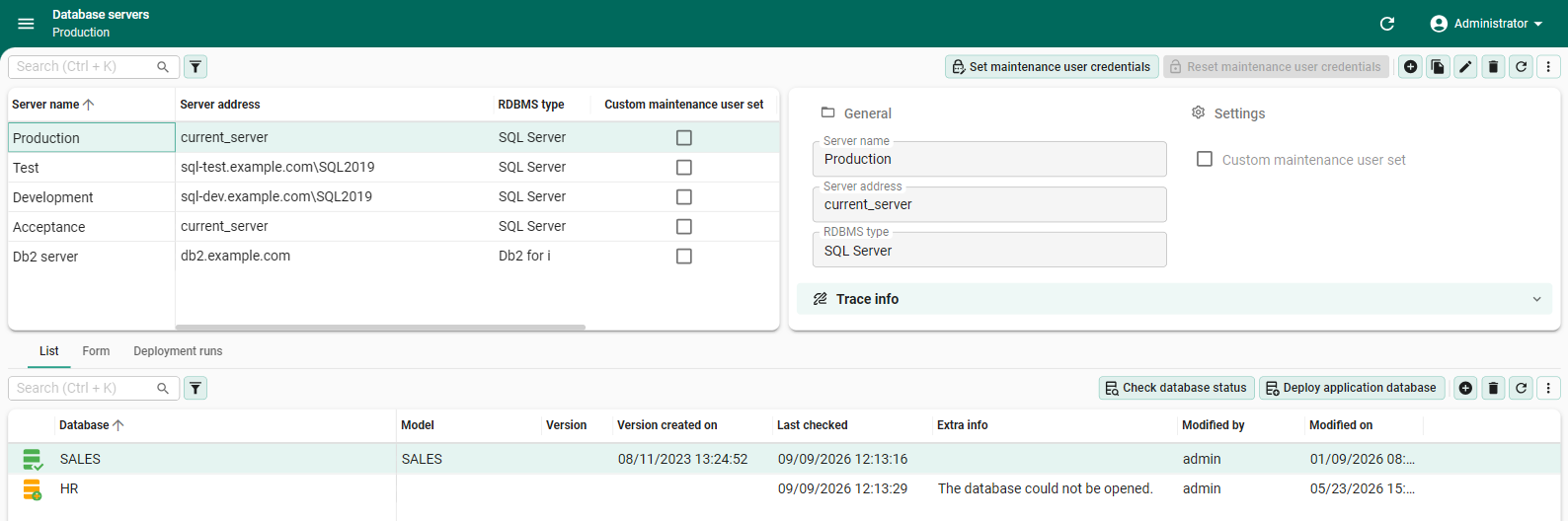 Manage database servers and their application databases
Add a database server
main administratorTo add a database server:
Deployment > Database servers
- Select Add and complete the following fields:
- Server name
- Server address
- RDBMS type
Check the status of a database
main administrator application administratorYou can check the status of a database to determine whether it is reachable and contains a valid model. Execute the task Check database status (menu Deployment > Database servers > tab List/Form).
The following statuses are available:
 Ok - The database is reachable and contains a valid model.
 Ready to provision - The database server is reachable, but the database/schema does not yet exist.
 Ready to install -
The database is present and accessible but assumed empty; there is no model information stored in the database.
Ready to install -
The database is present and accessible but assumed empty; there is no model information stored in the database. Deployment running - An installation or upgrade of the database is in progress.
A new deployment cannot be started until this one is finished or canceled.
Deployment running - An installation or upgrade of the database is in progress.
A new deployment cannot be started until this one is finished or canceled. Deployment failed - The last installation or upgrade did not complete.
The reason is shown in the field Extra info (tab Form), and each step is logged in the tab Deployment runs.
Deployment failed - The last installation or upgrade did not complete.
The reason is shown in the field Extra info (tab Form), and each step is logged in the tab Deployment runs. Unreachable - The database or database server is not accessible for use by the Thinkwise Platform.
 Unverified - No check has been done yet.
Configure a maintenance pool user for a database
main administratorYou can configure a maintenance pool user per database server. This is useful for administrative tasks, such as database provisioning, installation, and upgrades. This is different from a database pool user, which is used for regular database operations by the application.
Ensure the maintenance pool user has the required permissions on the database. See Configuring pool users for more information.
To configure a maintenance pool user:
Deployment > Database servers
- Select a database from the grid.
- Execute the task Set maintenance user credentials.
- Enter the User name and Password for the maintenance pool user.
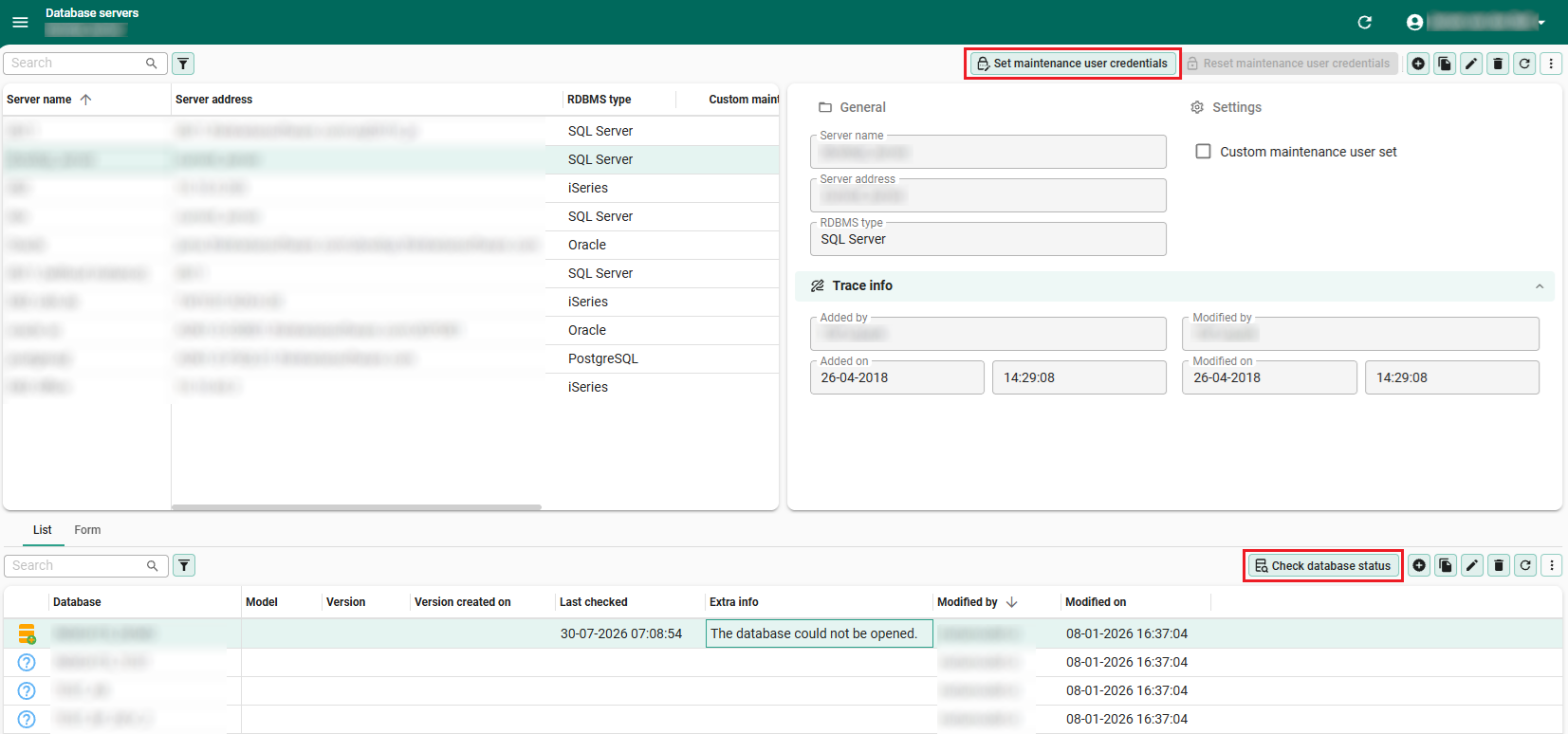 Set a maintenance pool user for a database server
Install or upgrade an application database
main administrator application administratorYou can install an application database for a model version directly from the Intelligent Application Manager (IAM). You can also upgrade an installed application database to a newer model version. The model version must first be synchronized to IAM. See Synchronization to IAM in the Software Factory guide.
To install or upgrade an application database, in IAM:
Deployment > Database servers > tab List
- Select a database. To install, select a database with the status Ready to provision or Ready to install.
- Execute the task Deploy application database.
- In the task pop-up, select a model and version. For an upgrade, the task pop-up shows information about the database. Any errors are also displayed here. You cannot skip versions when upgrading an application database.
- Select Execute.
Before the upgrade or installation starts, the database is checked.
-
If the check fails, the upgrade or installation is blocked. The reason is shown in the field Warning in the task pop-up.
-
A pop-up appears asking for confirmation before proceeding when:
- The database is not on the version that this upgrade continues from.
- The previous deployment of this database failed.
- The model has changed since the version was created.
To continue, enter the exact name of the database. This field is case-sensitive. If you cancel or enter another name, the database stays unchanged.
If all checks pass, the database status changes to Deployment running. While the deployment is running, you cannot start another deployment for this database. Every deployment run is recorded and can be viewed in the tab Deployment runs, see View deployment runs.
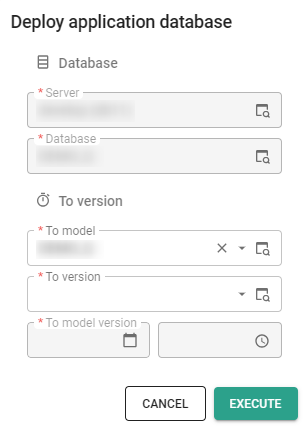 Select the model and version to install or upgrade in the task pop-up
View deployment runs
main administrator application administratorEvery installation or upgrade attempt is logged as a deployment run, including attempts that were stopped. Each run shows the version it started from and the version it deployed to.
Deployment > Database servers > tab Deployment runs
- The tab List shows each run with the start and end time and its status: Running, Successful, Failed, Prevented, or Cancelled. To cancel a run that is waiting for confirmation, execute the task Cancel deployment run. This frees the database for a new attempt.
- The tab Form shows the details of a run. If the run failed, the field Extra info explains why.
- The tab Deployment run log shows the individual steps of a run, any errors, and the step at which a failed deployment stopped.
If an application database installation or upgrade fails, the database status changes to Deployment failed. To restart it, rename or remove the database on the database server. Then, execute the task Check database status to set the status back to Ready to provision, and execute the task Deploy application database again.
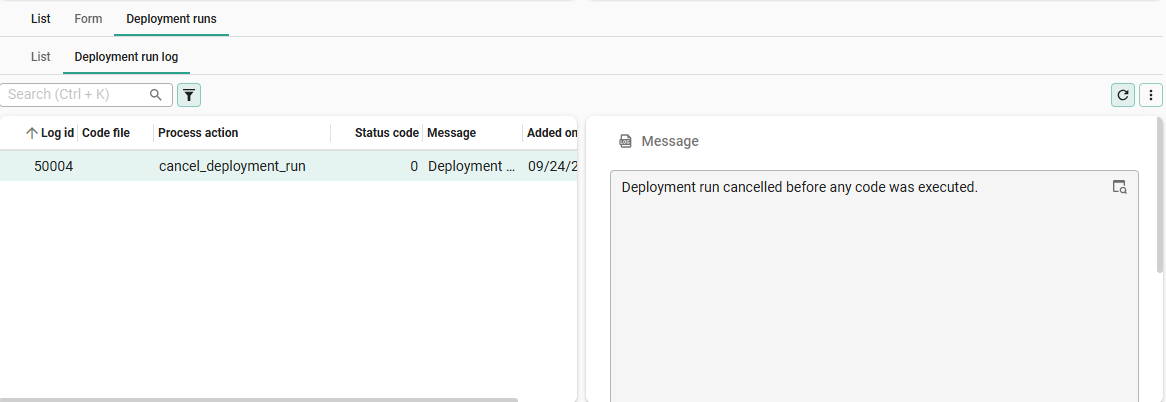 View the steps of a deployment in the tab 'Deployment run log'