2026.2
This release strengthens the Manufacturing Execution System (MES) capabilities of the Thinkwise Platform with the introduction of MQTT broker capabilities. The MQTT protocol is the de facto Industry 4.0 standard for real-time interaction with machines and sensors, allowing customers to use the Thinkwise Platform for both ERP and MES capabilities in a single solution.
Flexibility in deployment options and database technologies is core to our proposition. In preparation for IAM support on Db2 and PostgreSQL, it is now possible to link multiple RDBMS types to a single Software Factory model. Customers can use this to deploy their application on different database platforms or to migrate to PostgreSQL, for which Enrichments support is planned in a later release. In addition, Custom components can now be uploaded directly in the Software Factory, simplifying their deployment, especially in container environments.
The Scheduler now offers improved configurability, including a new datetime condition type for cell colors, the ability to display day names and HTML support for activities.
Four new IAM user management process actions are now available to create and update users, and assign user groups in IAM directly from an end application. This allows you to manage IAM users without needing to access the IAM, which can be useful for scenarios such as onboarding new employees.
While not strictly related to this Platform release, we would like to highlight that the Universal UI now better supports Offline field service scenarios with the introduction of offline data and table tasks.
The Software Factory now also supports working in different branches across different browser tabs.
Note that the Indicium and Universal UI 2026.2.10 versions no longer work with Thinkwise Platform versions older than 2024.3. In addition, Indicium now requires the .NET 10 runtime to be installed. Refer to the breaking section for more details.
Questions or suggestions about the release notes? Let us know in the Thinkwise Community!.
Contents
- Breaking
- Use message brokers in the Software Factory
- New and changed in the Software Factory
- Models - Use multiple RDBMS types for a model
- Models - Active model and branch are now bound to browser tabs
- Models - Added 'Reset merge conflicts' task
- Models - Thinkwise base models set to read-only
- Models - Formalized 'ShowTabIcons' extended property
- Data - Editable expression fields
- Data - Support for checkbox control for 'VARCHAR' and 'CHAR'
- User Interface - Added 'Custom components' screen
- User Interface - Add conditional formatting for datetime values in the Scheduler
- User Interface - Display day names in the Scheduler
- User Interface - Added 'Drop date time parameter' for Scheduler drag-drop
- User Interface - Improved suggestions for 'Create a cube'
- Processes - Manage IAM users from an application
- Processes - Report action type 'None' added
- Quality - Configure validations from base models
- Quality - Improved behavior when copying unit tests
- Quality - Smoke tests now supported for PostgreSQL
- Access Control - Improved role management for process flows with subflows
- Deployment - Download deployment package
- Deployment - 'Branch' renamed to 'Version' in IAM
- Integration & AI - Removed 'AutoML' screen
- New and changed in the Intelligent Application Manager
- Fixed
- Data model changes
Breaking
Thinkwise Platform 2024.1 and 2024.2 - End of Service Life
breakingAs per our Lifecycle policy, support for Thinkwise Platform version 2024.1 and Thinkwise Platform version 2024.2 has ended and will receive no further updates.
Upgrade to Thinkwise Platform 2024.3 or higher.
Data model changes for multiple RDBMS type support
breaking Software FactoryAs a result of adding support for multiple RDBMS types for a model, some significant breaking changes have been made to the data model of the Software Factory.
The following areas are impacted and need your attention after upgrading to Thinkwise Platform 2026.2.
-
Domains - Domains that originate from a base model may have lost their datatype. This can happen if the domain was used inside the work model, but the base model was unlinked from the work model.
-
For every domain in your model, verify that a datatype exists.
-
For each generated domain in your model, verify that:
-
The domain is generated by a valid control procedure or base model.
-
Its data type is generated by a valid control procedure or base model.
We have noticed that the domains
id,name, anddate_timeoriginating from a base model are most susceptible to this impact.If the domain or its data type is no longer generated by a valid control procedure or base model, unlink the generated object using the Unlink task.
-
-
-
Dynamic model - Code, query, and datatype related fields have moved from their original tables to
_query-suffixed tables.-
Verify all Dynamic model code to ensure query fields are read from and written to the correct table.
Examples:
- A query previously written to
tab_prefiltermust now targettab_prefilter_query. - A data type (
dttp_id) previously written todommust now targetdom_query. - An expression field query previously written to
colmust now targetcol_query.
- A query previously written to
-
-
Validations - Update any validation that references a query field in a table to reference the
_query-suffixed version of that table. -
Business logic - Make sure that control procedures with SQL assignments that use the strategies Delete or Fully controlled, and insert into any of the following tables, now include
rdbms_typein the insert:-
prog_object
-prog_object_parmtr
-prog_object_item
-prog_object_item_parmtrUse the following values for
rdbms_type:Value RDBMS type 0SQL Server 1DB2 iSeries 3Oracle 4PostgreSQL When using the strategy Staged, the Software Factory processes the data from the staging tables into the model, and fills in the
rdbms_typefield for you.
Check this blog at the Community for recommendations on updating your dynamic code, including a Skill for Claude to fix code with the help of AI.
'Slow query log' uses placeholders for data values
breaking IndiciumThe Slow query log no longer stores data values in log entries for Thinkwise Platform 2026.2 and older.
To prevent sensitive data from being written to the log, values are now replaced with ?.
For example, filter values, inserted record values, and task parameter values are all logged as ?.
The structure of the database statement remains intact, so you can replace the ? placeholders with actual values for troubleshooting.
From Thinkwise Platform 2026.2 onwards you can opt in to storing data values in the Slow query log. You can do this by enabling or disabling the checkbox Include data in slow query log in the Intelligent application manager (menu Settings > Global settings > group Logging). By default, this setting is disabled.
For more information, see Analysis - Control data inclusion in 'Slow query log'.
The Database Event Log in the Debug Center is not affected by this change. It continues to show data values, as it is only visible to the current user for their own session and is not backed by persistent storage.
Indicium requires .NET 10
breaking IndiciumAs of this release, Indicium requires the .NET 10 runtime to be installed. This upgrade brings performance improvements, enhanced security, and keeps us on supported .NET versions by Microsoft. Before upgrading, install .NET 10 to ensure everything continues to work as expected.
On Linux, Indicium requires the Microsoft version of the .NET Runtime. The Microsoft version includes IIS-specific libraries that are necessary for Indicium to function properly.
If you do not install the Microsoft version, the following error occurs: 'Unhandled exception. System.TypeLoadException: Could not load type 'Microsoft.AspNetCore.Builder.IISServerOptions' from assembly 'Microsoft.AspNetCore.Server.IIS, Version=10.0.0.0, Culture=neutral, PublicKeyToken=adb9793829ddae60'.
To solve this issue, you can use the Scripted install section to install the runtime by running ./dotnet-install.sh --channel 10.0 --runtime aspnetcore.
Use message brokers in the Software Factory
newYou can now use Message brokers in the Software Factory. Message brokers enable reliable, scalable, and asynchronous communication between different systems and devices. Support has been added for publishing messages to topics on MQTT message brokers, and in later releases, support will be added for subscribing to topics as well.
Before you can set up a message broker, you should have a message broker server ready that is compatible with MQTT, for example, HiveMQ, EMQX, Mosquitto, or Chariot.
To set up a message broker in the Software Factory, complete the following steps:
- Create a message broker
- Configure connection, authentication, and (optionally) last will settings
- Create a message
- Publish messages using a process flow
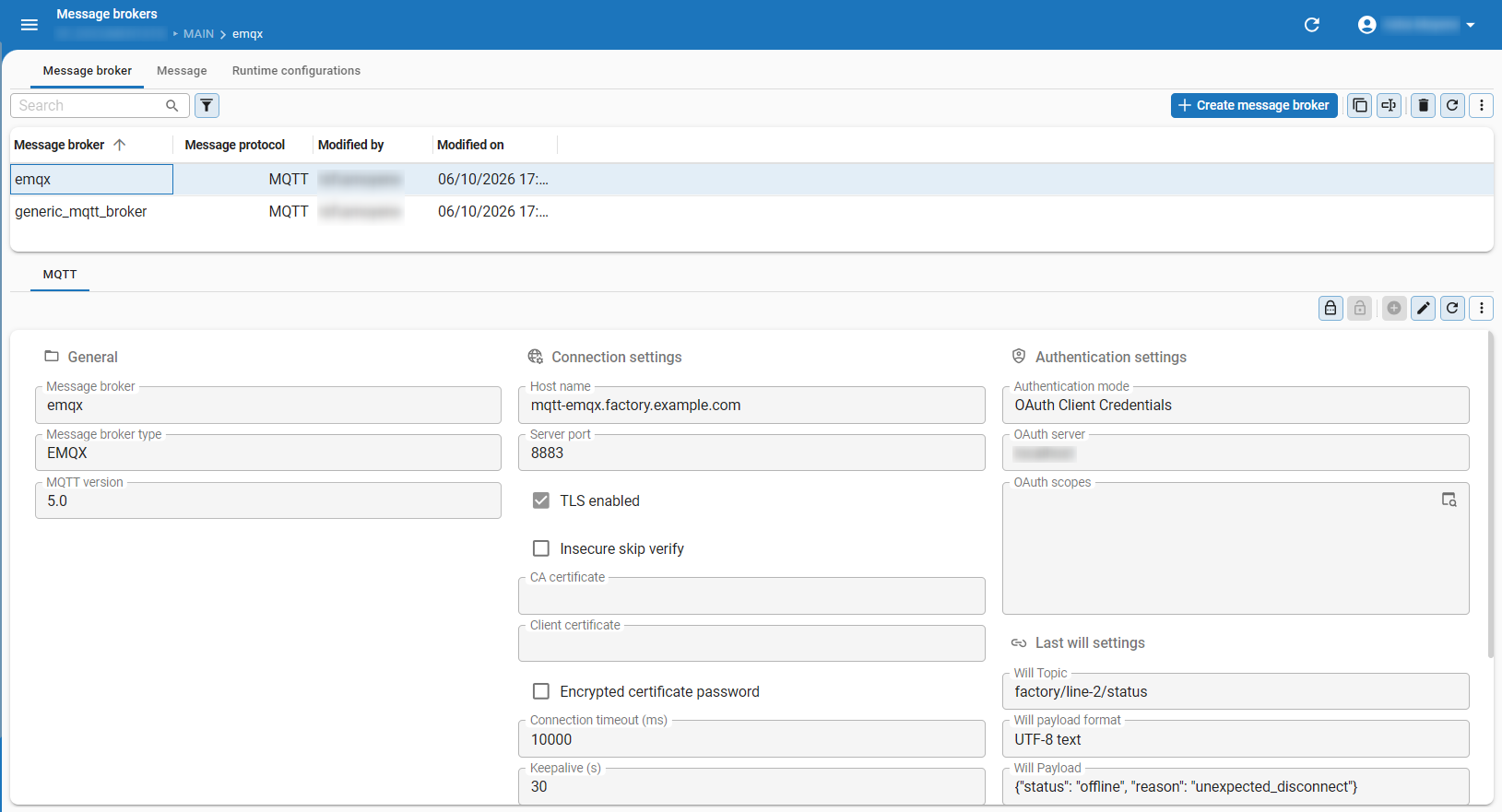 Overview of 'Message brokers' in the Software Factory
Create a message broker
To set up a message broker, go to the menu Integration & AI > Message brokers.
Execute the task Create a message broker .
Enter a name and select the Message protocol.
Currently, only MQTT is supported.
.
Enter a name and select the Message protocol.
Currently, only MQTT is supported.
Then, go to the tab MQTT to further configure the message broker. Supported Message broker types are: Chariot, EMQX, Generic MQTT broker, HiveMQ, and Mosquitto. Generic MQTT broker can be used for any MQTT-compatible broker. Use this option if your broker is not listed, but ensure the broker supports the options you want to configure.
The following features are only supported for MQTT version 5.0: Last will messages, User properties, Payload format, and Reply expected.
Configure connection, authentication, and (optionally) last will settings
In the tab MQTT, complete the mandatory Connection settings:
- Host name
- Server port - Enter a Server port.
The default port is
8883when TLS is enabled and1883when TLS is disabled.
Then, set up the Authentication settings. Available methods are:
- None - No authentication is required to connect to the message broker.
- Username and password - A username and password are required to connect to the message broker.
- OAuth Client Credentials - A configured OAuth server is required to connect to the message broker.
- Select an OAuth server. You can override the OAuth scopes configured for the OAuth server. This produces a JWT Access Token that can be used for authentication with the message broker.
- Access token - An access token is required to connect to the message broker.
Note that an access token can expire and needs to be manually updated.
If possible, OAuth Client Credentials is the preferred option, as it manages the access token for you.
- Enter a number in the field Access token expiration and select a time unit to specify how long the access token is valid.
You need to execute a task to encrypt sensitive data such as client certificates and access tokens. To configure this, go to the tab MQTT:
- For Client certificates, execute the task Set MQTT key values (encrypted) and select the Client certificate key. Then, upload the client certificate file and (optionally) provide the Password for the client certificate.
- For Access tokens, set the Authentication method to Access token. Then, execute the task Set MQTT key values (encrypted) and select the Access token key.
- For Username and password authentication, execute the task Set MQTT key values (encrypted) and set the Password.
You can also upload a CA certificate, which is used to verify the server certificate of the message broker. Client certificates and CA certificates are optional but best practice when connecting to a message broker, as they provide an additional layer of security.
Message broker key values set in the Software Factory are not synced to IAM or vice versa. In development, you can set these values in the Software Factory for testing purposes, but you will need to set them in IAM for production.
Connection and authentication settings can also be overridden in IAM, allowing you to have different configurations for different environments. You can do this by going to the menu Authorization > Applications > tab General settings > tab Message brokers. Select a message broker, then execute the task Set message broker key values (encrypted) to override the encrypted values for connection and authentication settings.
Optionally, you can also set up Last will settings in the tab MQTT. This allows you to specify a message that is published by the broker when the connection to the client is lost unexpectedly.
Create a message
Within a message broker, you can define one or more messages in the tab Messages. Messages work similarly to Web connection endpoints, supporting input and output parameters, message templating, and a request-response pattern.
Complete the following mandatory fields:
- Message - Add a name for the message.
- Topic - Add a hierarchical string to specify the topic to which the message will be published (for example:
update/temperature). - QoS level - Select a QoS level to specify the guarantee of delivery for the message.
Available levels are:
- 0 (At most once) - The message is delivered at most once, and delivery is not guaranteed. This is the fastest level and is suited for fire-and-forget scenarios where occasional message loss is acceptable, such as frequent temperature updates.
- 1 (At least once) - The message is delivered at least once, but may be delivered multiple times if acknowledgments are lost. This level provides a balance between speed and reliability.
- 2 (Exactly once) - The message is delivered exactly once by using a four-step handshake process. This is the slowest level, but ensures that messages are not duplicated or lost.
You can dynamically assign values in the following fields: Topic, Payload, Content type, and User properties.
To do this, go to the tab Input parameters and add an input parameter (for example, temperature_value).
Then, go to the tab Message > tab General and add this parameter as a placeholder in the supported fields using curly braces.
For example, in the Payload field, you can enter {"temperature": {temperature_value} }
to dynamically set the temperature value in the payload when publishing the message.
In the same way, you can add Output parameters to expose certain data from the message to a process action output parameter. For each output parameter, select a Retrieve value from option. Available options are:
- Reply payload - Retrieve the payload from the response.
- Reply user property - Retrieve the value of a user property from the response.
- MQTT publish error code - Retrieve the MQTT-specific error code returned by the broker after publishing.
- MQTT reply error code - Retrieve the MQTT-specific error code returned by the broker related to subscribing to the response.
You can also apply transformations to the retrieved value, such as Base64 decode, Apply JSON Path, Always as array, Apply XPath, or Apply Regex.
Input and output parameters must be mapped in the process flow unless a parameter is optional or has a default value. See also Publish messages using a process flow.
Publish messages using a process flow
A message can only be published if a process flow is set up with a Publish message process action. This can be a system process flow or a user process flow.
First, Create a process flow. Add the process action Publish message to the process flow. Select the Message broker and Message that you set up in the previous steps. If you have created input and output parameters, these will appear in the tab Input and tab Output respectively. Configure these values as needed.
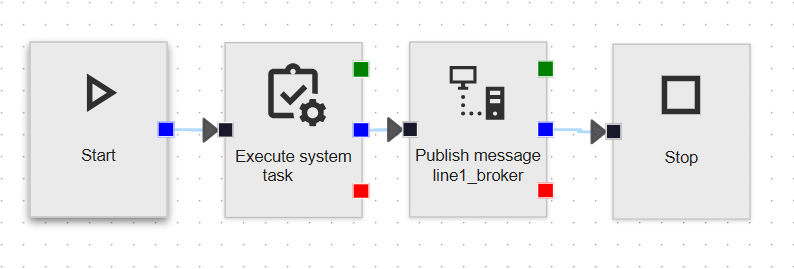 A process flow that fetches a value from the database and then publishes a message
New and changed in the Software Factory
Models - Use multiple RDBMS types for a model
change Software FactoryYou can now use multiple RDBMS types for one model in the Software Factory. This means you can maintain one model that targets multiple database platforms, such as SQL Server and PostgreSQL, without needing to create separate models for each platform. Migrating to another database platform, such as PostgreSQL, is now significantly easier and can reduce platform costs.
This feature also marks an important step toward future support for the Intelligent Application Manager (IAM) running on DB2 and PostgreSQL.
The RDBMS type is no longer a model property, but is now stored at branch level. We recommend adding a new RDBMS type in a dedicated branch to isolate changes until you are ready to merge.
Data is now stored differently as well, with code, query, and datatype fields being stored in dedicated _query tables for each RDBMS type.
The tables are always named as the original table suffixed with _query.
For example, prefilter queries are no longer part of tab_prefilter, but are now stored in tab_prefilter_query.
To set up multiple RDBMS types for a model, go to menu Models > Model overview > tab Branches > tab General settings > tab RDBMS types.
Execute the task Link RDBMS type  and select one of the supported RDBMS types from the dropdown menu.
Supported RDBMS types are: SQL Server, DB2 iSeries, Oracle, and PostgreSQL.
and select one of the supported RDBMS types from the dropdown menu.
Supported RDBMS types are: SQL Server, DB2 iSeries, Oracle, and PostgreSQL.
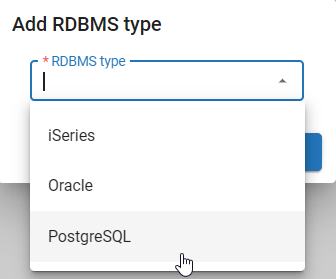 Add a new RDBMS type for a model
Then, the Software Factory will convert existing domain data types in the model to the appropriate data type for the selected RDBMS type. Not all data types can be converted successfully, so make sure to check the Validation results and fix any issues before deploying the model. Any other data, such as code in calculated fields and custom queries, must be updated manually.
When upgrading without adding additional RDBMS types, everything works as before. However, some significant breaking changes have been made, so make sure to read Models - Data model changes for multiple RDBMS type support before upgrading.
Models - Active model and branch are now bound to browser tabs
changePreviously, in the Software Factory, the chosen model and branch would depend on the authentication session. If you opened multiple tabs in the same browser (or multiple PWA instances), they would load the same model and branch. This resulted in unexpected behavior, since switching branch would not close all documents in other tabs.
We have improved this behavior, so the active model and branch is now bound to the current browser tab. Opening a new tab prompts you to select a model and branch. Additionally, switching branch no longer affects other tabs.
This update is part of our efforts to improve support for multiple tabs in the Universal UI and the Software Factory.
Since sessions are now bound to browser tabs, you can use this to your advantage for your applications as well.
For example, you can bind the chosen administration, company, business unit, workspace or search result for a user to a browser tab
using the tsf_client_instance_id session variable.
This allows users to work with different contexts in different tabs.
See also New session variable for browser tabs.
Models - Added 'Reset merge conflicts' task
newPreviously, it was not possible to reset a merge conflict after resolving it in the Software Factory. If you wanted to change how a conflict was resolved, you had to manually undo the changes made to resolve the conflict.
To improve this process, we have added the task Reset merge conflict in the menu Models > Merging > tab Active conflicts.
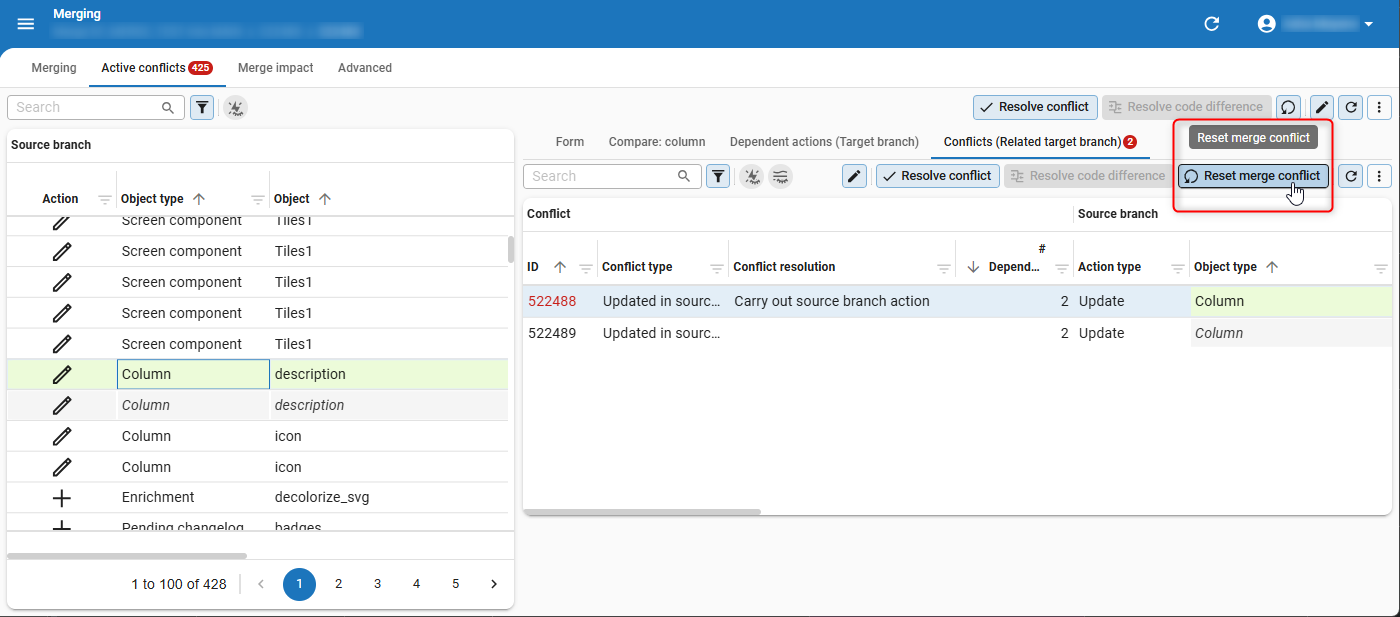 The task 'Reset merge conflict' allows you to resolve a merge conflict again
Models - Thinkwise base models set to read-only
changePreviously, Thinkwise base models for the Software Factory could be modified,
which could unintentionally break core functionality.
We have set branch access for important base models such as ENRICHMENTS, GUI_TRANSL_ENG and SQLSERVER_DB to read-only by default.
This prevents unintended changes and helps ensure the stability of the Software Factory.
Models - Formalized 'ShowTabIcons' extended property
changePreviously, the extended property ShowTabIcons could be used to show tab icons for detail tabs and tab containers in the Universal UI. We have formalized Show tab icons as a setting in the menu Models > Model content > Model settings > group Screen type.
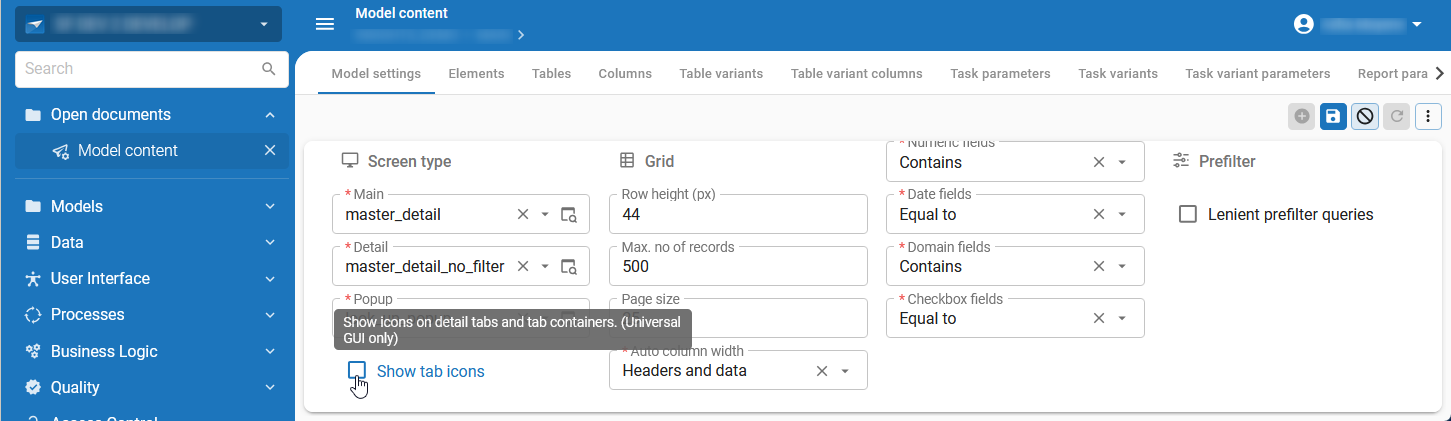 Select 'Show tab icons' to display tab icons
By default, this setting is disabled for all models.
However, when you upgrade to this version, the setting is automatically enabled for all models that had the ShowTabIcons extended property set to true.
As a result of this change, the extended property ShowTabIcons is deprecated and removed. This also means you can no longer modify this setting in IAM. The extended property remains available for lower Thinkwise Platform versions.
Data - Editable expression fields
Community idea changePreviously, columns with calculated fields could only be set to Read-only or Hidden. You can now set columns with an Expression field to Editable in the menu Data > Data model > tab Tables > tab Columns. This can be useful, for example, when you want to use an expression field as an input field for a query.
A parameter for insert and update handlers is added if you set up an expression column as Editable. You can use these parameters to process the value of the expression column. This change is not breaking, as expression columns that are set to Read-only or Hidden will not have parameters added and continue to work as before.
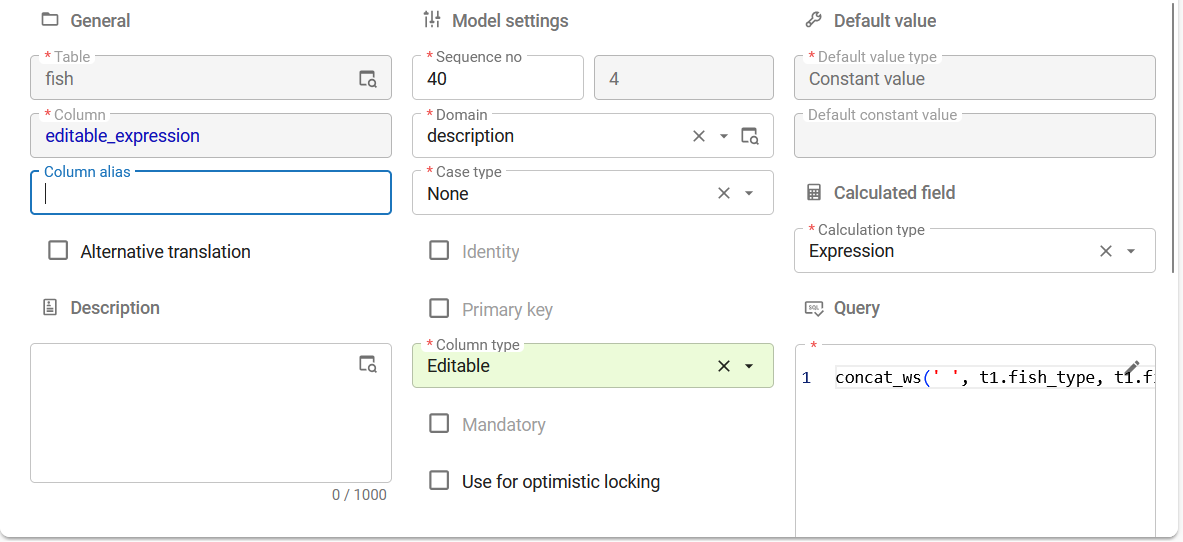 Set 'Column type' to 'Editable' for expression fields
Data - Support for checkbox control for 'VARCHAR' and 'CHAR'
new Universal UIThe Checkbox control is now supported
for domains with VARCHAR and CHAR data types.
This allows you to use checkboxes in your application when the underlying database values are, for example, 'Y'/'N' or 'T'/'F'.
To use the Checkbox control for these domains, add the following domain elements to a domain (menu Data > Domains > tab Elements):
- One Element with the name 'true'. The Database value should correspond to a checked checkbox, for example 'Y' or 'T'.
- One Element with the name 'false'. The Database value should correspond to an unchecked checkbox, for example 'N' or 'F'
The Checkbox control only works correctly if the domain contains exactly these two elements.
Otherwise, the checkbox control will not work as intended.
An indeterminate checkbox corresponds to a null value in the database, similarly to regular checkboxes.
A validation has been added to the Software Factory to check whether domain elements with a Checkbox control are set up correctly.
Additionally, in the Thinkwise Platform 2026.1 release, we introduced behavior to the Software Factory where the control type for domain elements is automatically set to Combo. This behavior does not apply when you add domain elements to a domain with a Checkbox control.
 Domain elements with corresponding database values and a 'Checkbox' control in the Universal UI
User Interface - Added 'Custom components' screen
new Software Factory Universal UICustom components let you extend your application with functionality specific to your organization that is not part of the standard Thinkwise component set. Previously, you could add custom components by placing them in a subdirectory of the Universal UI and referencing that location as a URL segment. In Thinkwise Cloud, this is not possible because running your own containers is not supported.
To address this, a Custom components screen (menu User interface > Custom components) has been added to the Software Factory.
This screen acts as a repository where each custom component can be uploaded as a .zip file and stored in the database, similar to how icons are managed.
For each custom component, you can provide:
- A Description.
- A Default entry point, which specifies the file inside the
.zipfile used to start the custom component (for example,index.html).
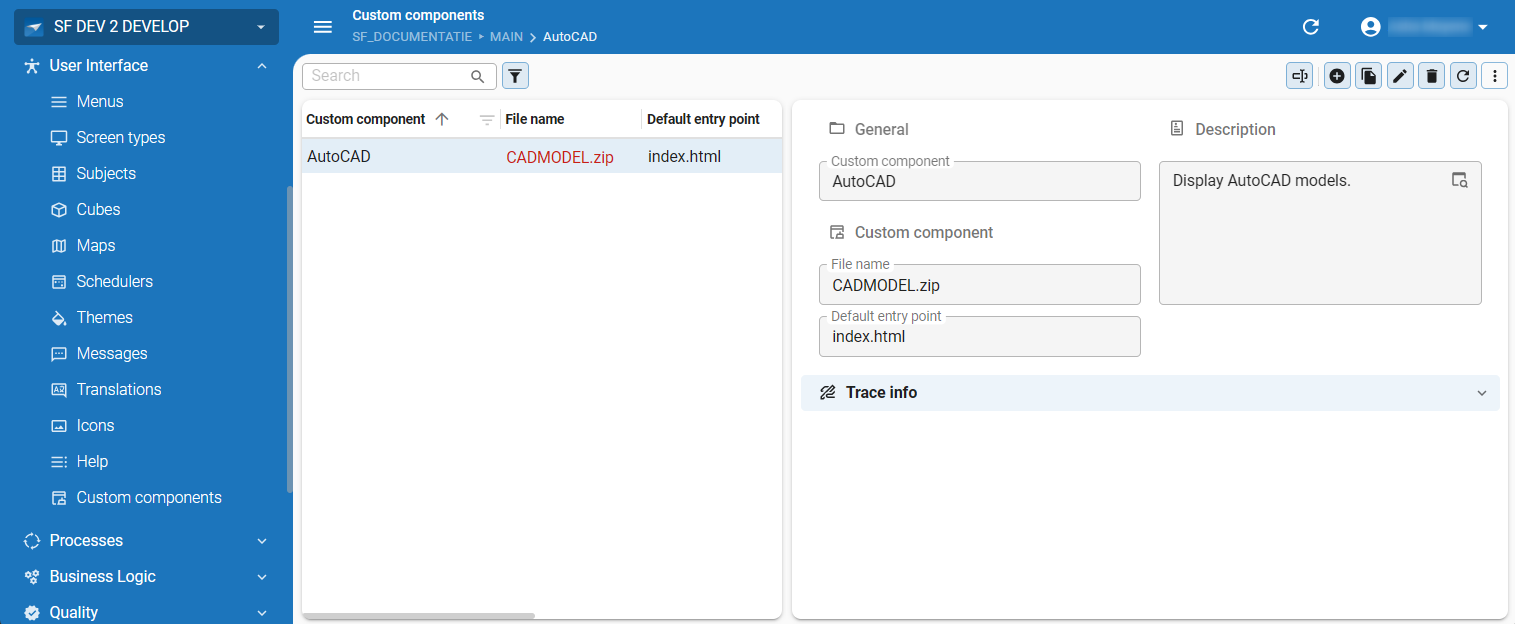 The 'Custom components' screen in the Software Factory
The Usage tab shows which tables and table variants use the custom component.
At table and table variant level, you can set the Custom component source to Model or External:
- Model — uses the new repository.
Select a custom component via a lookup and specify the Entry point.
If the selected custom component has a default entry point defined, it is applied automatically. This can be overridden.
You can use
{metasource}and{application}variables in the entry point to refer to different versions of the custom component. - External — uses the existing URL-based approach. When you upgrade, sources for existing custom component references are automatically migrated to External.
At table variant level, you can override the table configuration. This includes whether a custom component is used, which source is applied, and which component is selected. This way, different variants of the same table can use different custom components without affecting each other.
User Interface - Add conditional formatting for datetime values in the Scheduler
new Software FactoryConditional formatting for Scheduler time cells can now be based on exact datetime values, in addition to a Time scale (such as day, month, or year) or a Column. This makes it straightforward to target specific date ranges, such as a holiday period, without relying on individual date parts.
To add a datetime condition, go to menu User Interface > Schedulers > tab Scheduler views > group Cell colors > Cell color conditions and set Type of timescale to Datetime. For example, to highlight limited capacity between Christmas and New Year:
- Type of timescale:
Datetime - Condition:
Between - Type of value:
Constant - Value:
2025-12-25T00:00:00Z - Until type of value:
Constant - Until value:
2026-01-01T00:00:00Z
You can also use column values instead of constants to compare against dynamic start and end datetime columns.
When Datetime is selected, the Timescale field is hidden and dedicated datetime input fields are shown for Value and Until value. These fields use the Local time zone, so you can enter values in your local time. The values are stored in UTC (ISO 8601 format).
User Interface - Display day names in the Scheduler
new Universal UIYou can now display the day name along with the number in the Scheduler when using a Day timescale. To do this, go to the menu User interface > Schedulers > tab Scheduler views > group Days and select Number + name of day as Day label format.
 Day names can now be shown along with its number
For Thinkwise Platform 2026.1.15 and lower, set the extended property SchedulerDayScaleShowDayName to True to show the day name in the Scheduler.
User Interface - Added 'Drop date time parameter' for Scheduler drag-drop
new Software FactoryPreviously, to use external drag-and-drop on a Scheduler time cell, the drag-drop task had to be configured as the Add activity task on the Scheduler. This meant the Scheduler's Start date time parameter was shared across all drag-drop configurations, with no way to set a different parameter per configuration.
Drag-drop records now have a Drop date time parameter field. This allows each drag-drop configuration to use its own parameter for the dropped date and time, instead of the Start date time parameter set at the Scheduler level. To add a Drop date time parameter, go to menu User Interface > Subjects > tab Links > tab Drag-drop > tab Drag-drop parameters and add a parameter. If Drop date time parameter is not filled, the Scheduler's Start date time parameter is used instead.
A new Scheduler drag-drop detail tab has also been added to the Schedulers screen (menu User Interface > Schedulers > tab Scheduler drag-drop). This tab shows all drag-drop records for the current Scheduler table, so you can manage them directly from the Scheduler instead of navigating through Subjects. Records where Drop date time parameter is not filled are highlighted in red.
When you upgrade, the Drop date time parameter is automatically filled for existing drag-drop records where the Drag-drop task matches the Add activity task configured at the Scheduler level and the Target tab matches the Scheduler table. This only applies when both tasks match.
User Interface - Improved suggestions for 'Create a cube'
changeWe have improved suggestions when you execute the task Create a cube  from the menu User Interface > Cubes > tab Tables.
- Several data and control types have been excluded from becoming dimensions, such as files and multiline controls.
- Numeric primary keys (identities) will now always be added as value columns using a Count aggregation type instead of a Sum aggregation type.
- All other numeric cube values use Sum and can now optionally be marked as editable. This makes the field, column and table editable.
- You can also enable an update handler for editable values.
- Various options now offer more flexibility to set the screen type of the cube to be focused on either a chart, a pivot, a customization panel or a combination of these.
Processes - Manage IAM users from an application
Community idea newPreviously, there was no formal API for managing users in the Intelligent Application Manager from an end application. The only workaround was to operate directly on IAM using existing connectors, which was not designed for this purpose and could break on every IAM upgrade.
Four new process actions have been added to replace that approach (menu Processes > Process flows > Process actions):
- Create IAM user — Creates a new user in IAM. When creating a user, you can set initial defaults for the application language, date format, number format, time zone, and user preference configuration.
- Update IAM user — Updates an existing user in IAM. Passing an empty value for optional fields leaves the existing IAM value unchanged. User preference fields such as application language and date format are intentionally not included, as users can configure these themselves in the application.
- Assign user to user group — Assigns a user to a user group, optionally within a specified period.
- Update user group assignment — Updates the period of an existing user group assignment.
To revoke a user's access, set an Ends on date using the process action Update IAM user or Update user group assignment. Each process action returns a status code that you can use to handle errors in your process flow. The new process actions are available for user process flows and system flows.
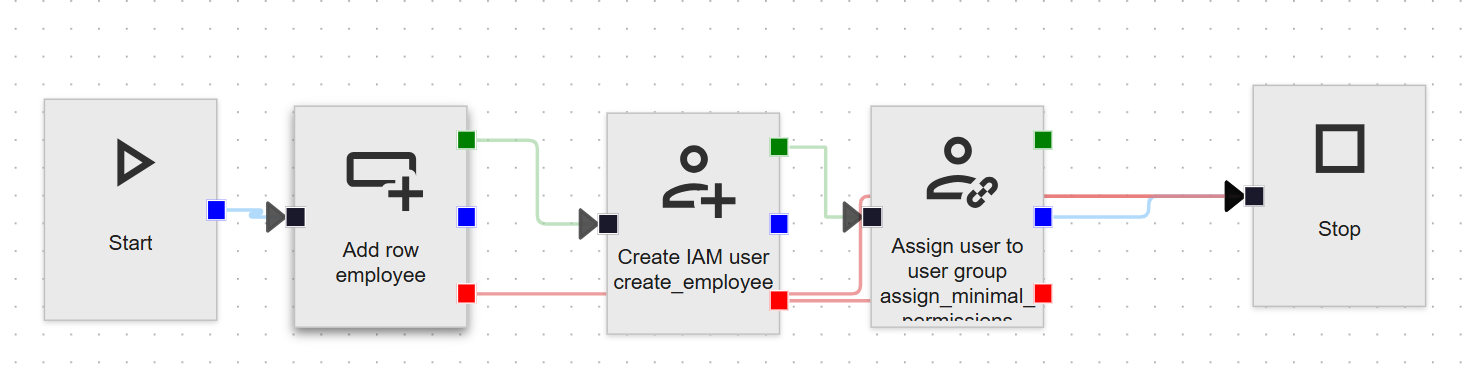 Example of a process flow creating an employee and assigning them to a user group
Processes - Report action type 'None' added
newWe have added support to set a Report action to None. If a report action is set to None, no report will be generated. This works similarly to setting a Task logic type to None for a task. This option allows you to use a report button as a starting point for a process flow. This is especially relevant when replacing the deprecated TSFReportMailer with the Thinkstore Reporting Service.
Quality - Configure validations from base models
Community idea new Software FactoryYou can now update the Default enabled, Severity, and Allow approval indefinitely values for validations that originate from a base model. You can update these values using the following tasks (menu Quality > Validations > tab Maintenance):
- Enable/disable validation
- Enable/disable allow approval indefinitely
- Update severity
Once you have manually updated a validation, the updated value is shown in the tab Validation configuration. You can filter on the prefilter Has different configuration to easily find validations that have been updated.
Custom values are set within the context of the current model and branch, and are not overwritten when the corresponding base model is generated or merged into the work model. They also remain in place when the full definition of the work model is generated. If you want to remove custom values for validations, you can Delete them in the tab Maintenance > tab Validation configuration.
As part of this update, a section of the Thinkwise guideline validations has been added to the Validations base model in the Software Factory. This includes validations for column names, domain names, primary key columns, references, table names, screen types, domain controls, icons, prefilters, tab containers, tasks, reports, and control procedures.
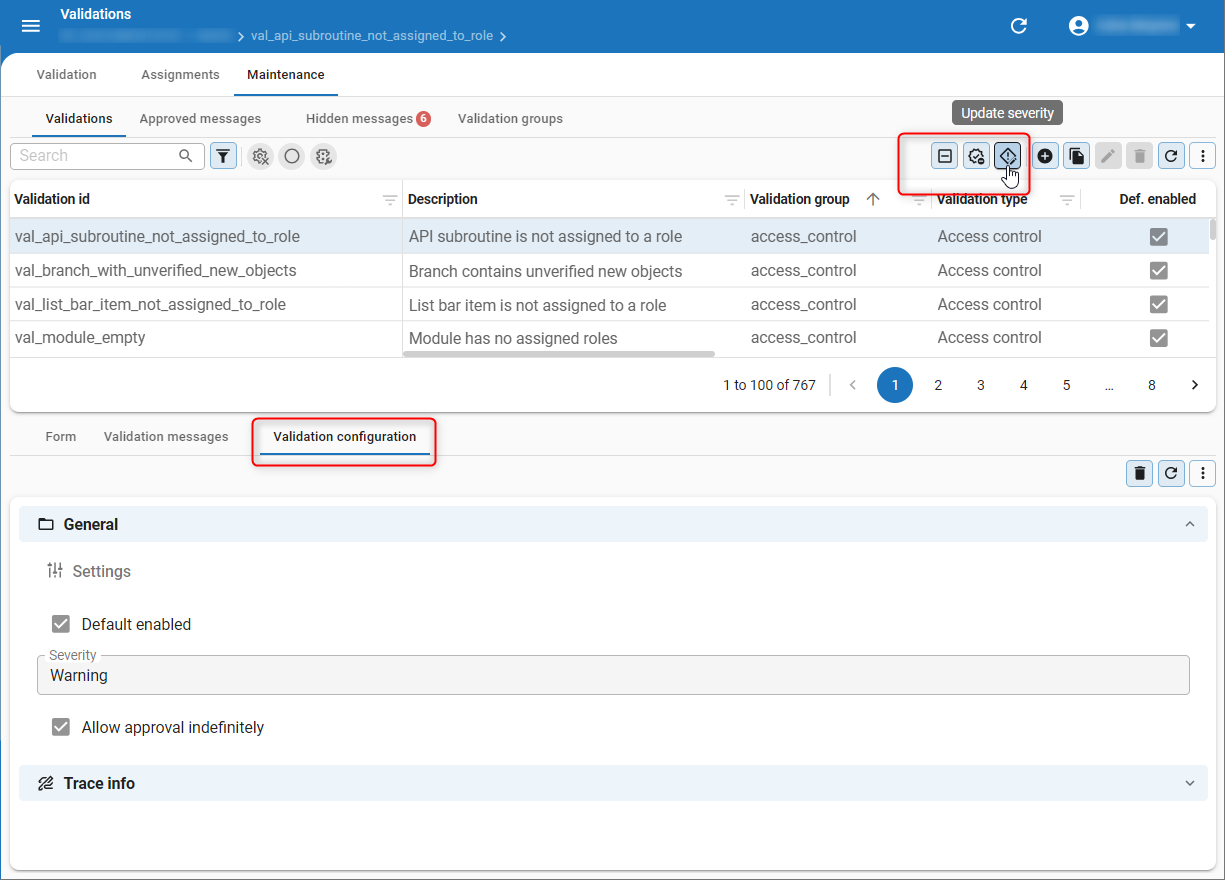 Once you have configured a validation, the tab 'Validation configuration' becomes available
Quality - Improved behavior when copying unit tests
Community idea changeUnit tests help you test each unit of functionality of an application separately. In the Software Factory, you can link unit tests to control procedures to ensure that they work as expected. Previously, when you copied a unit test in the menu Quality > Unit tests > task Copy unit test, the field Control procedure remained empty even if it was linked to a control procedure. This behavior has been improved. If you now copy a unit test with a linked control procedure, the Control procedure field is automatically completed.
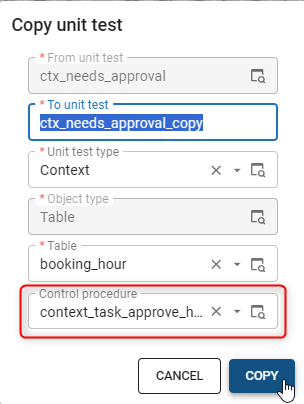 The field 'Control procedure' is now automatically completed when copying a unit test with a linked control procedure
Quality - Smoke tests now supported for PostgreSQL
newSmoke tests are preliminary tests that verify SQL queries in your application by checking for malformed queries, outdated parameterization, and other simple failures that could otherwise only be caught at runtime. Previously, smoke tests were only supported for SQL Server and Oracle models. Smoke tests can now also be run for PostgreSQL models.
To run a smoke test, go to menu Quality > Smoke tests. For more information, see Smoke tests in the documentation.
Access Control - Improved role management for process flows with subflows
newIn the Thinkwise Platform 2026.1 release, we introduced the ability to add user and system subflows to process flows. To execute these subflows, rights must be assigned to the roles that access these process flows.
To simplify role permission management for process flows, we have added the column Subflow to the tab Process actions in the Roles screen (menu Access control > Roles > tab Process flows > tab Process actions).
This allows you to see if a subflow is linked to a process action.
Additionally, if you execute the task Assign rights  to assign rights for a process flow,
rights for subflows in that process flow are now automatically granted.
to assign rights for a process flow,
rights for subflows in that process flow are now automatically granted.
A process flow is unavailable to a role if any of the individual process actions of that process flow is missing rights.
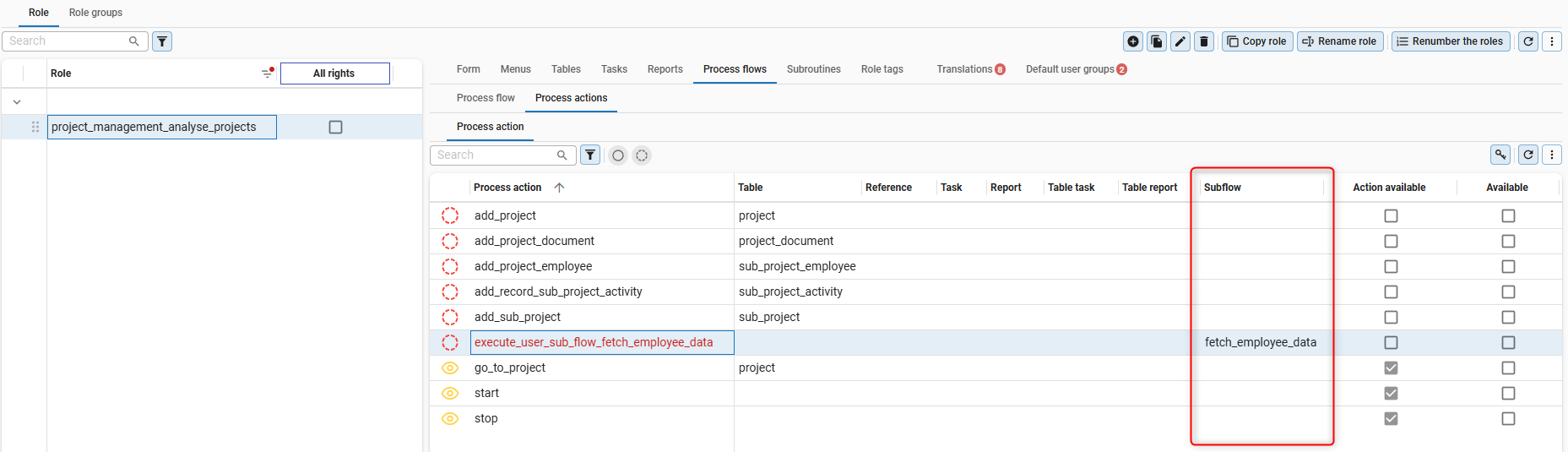 The column 'Subflow' allows you to see if a subflow is linked to a process action
Deployment - Download deployment package
new Software FactoryWe have added the task Download deployment package in the menu Deployment > Deployment package.
This task allows you to download a .zip file of your deployment package.
If you have multiple RDBMS types configured, you can select an RDBMS type to download the package for.
Leaving the RDBMS type field empty will result in a ZIP file containing deployment packages for all configured RDBMS types.
Deployment - 'Branch' renamed to 'Version' in IAM
changeWhen you synchronized branches from the Software Factory to IAM, they retained the name 'Branch' in IAM. After synchronization, these branches become fixed snapshots that can no longer be changed, merged, or compared like normal branches in the Software Factory. To better reflect this behavior, we have renamed synchronized branches to 'Version' in IAM.
Integration & AI - Removed 'AutoML' screen
changeThe menu item AutoML and its functionality have been removed. This screen was used for the now deprecated AutoML functionality, which allowed you to train prediction models on your application data to classify records or predict numerical values, such as prices, costs, or risks.
Instead of AutoML, you can use generative AI capabilities in the Thinkwise Platform, allowing you to generate text, code, and other content based on your prompts. We are also working towards offering more advanced AI capabilities, such as MCP in the future.
For more information, see Generative AI in the documentation.
New and changed in the Intelligent Application Manager
Authorization - 'Start objects' for users renamed to 'Favorites' in IAM
change main administratorIn a previous release, a distinction was made between Start objects for individual users and for user groups.
Start objects for individual users have been renamed to Favorites and no longer open automatically on startup. Users can mark menu items as Favorite as before. Favorites are still managed by main administrators in the Intelligent Application Manager. The naming in IAM has been updated in this release to reflect this: the tab Start objects (menu Authorization > Users > User preferences) has been renamed to Favorites.
Start objects for user groups remain the same and are still configured in IAM under menu Authorization > User groups > tab Group preferences > tab Start objects.
Analysis - Control data inclusion in 'Slow query log'
changeYou can now decide whether the Slow query log includes data values in log entries, giving you more control over where sensitive data is stored when strict data security requirements apply.
To control data inclusion, enable or disable the checkbox Include data in slow query log
in the Intelligent Application Manager (menu Settings > Global settings > group Logging).
If disabled, values are replaced with ? placeholders in the log.
For example, filter values, inserted record values, and task parameter values are all logged as ?.
The structure of the database statement remains intact, so you can replace the ? placeholders with actual values for troubleshooting.
Only enable Include data in slow query log when necessary, for example when diagnosing a performance issue that requires data values. This causes production data to be written to the IAM database, so make sure your IAM database is sufficiently secured.
The Database Event Log in the Debug Center is not affected by these settings. It continues to show data values, as it is only visible to the current user for their own session and is not backed by persistent storage.
You can also disable the Slow query log entirely by clearing the checkbox Enable slow query log.
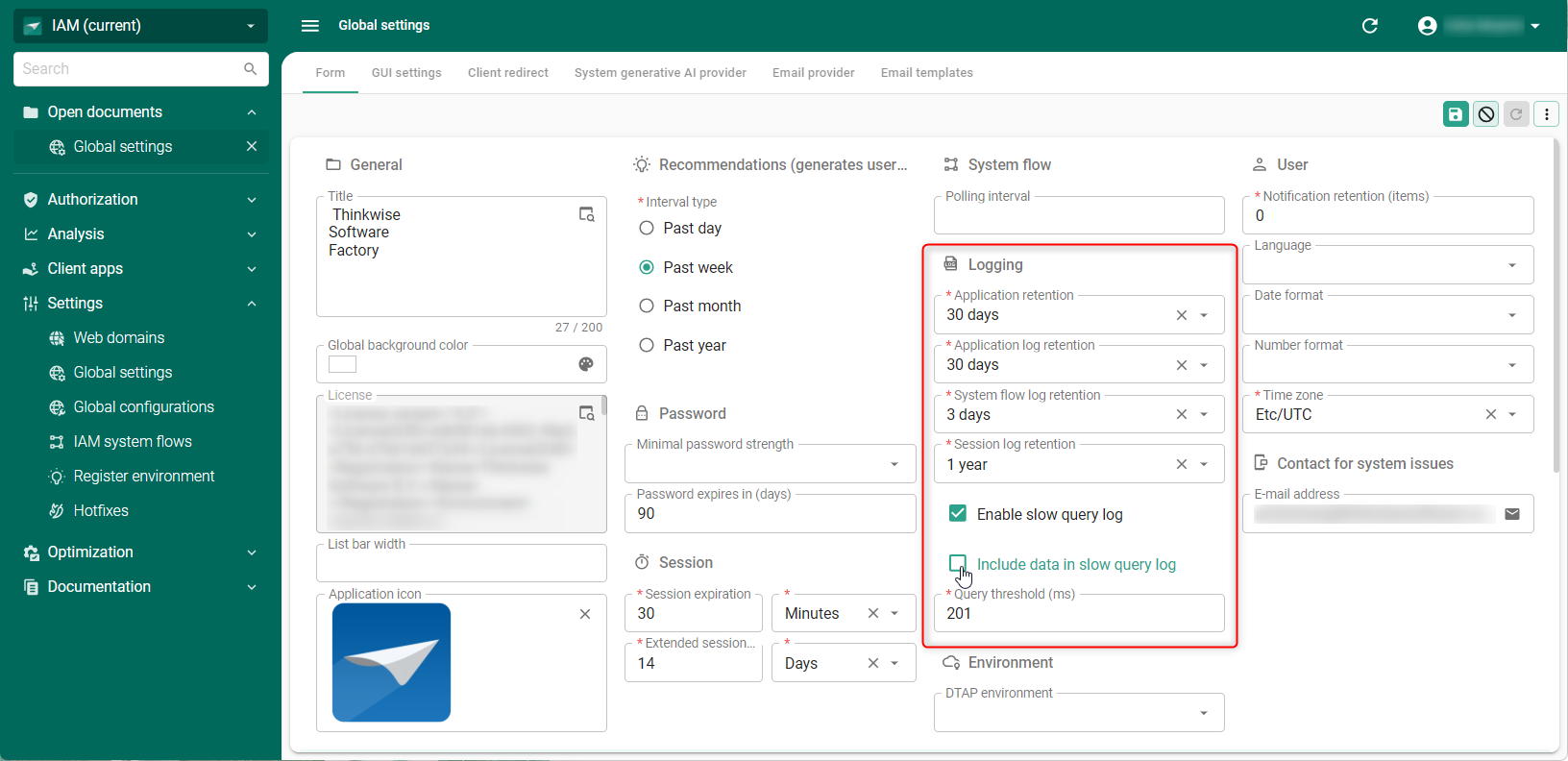 Control logging settings in the global settings of the Intelligent Application Manager
Fixed
- When deploying your PostgreSQL model for the first time, the upgrade script applied correctly but columns that should get their default value from a created default value query function were not applied properly. This caused no default value to be applied. This has been fixed.
- Task procedure names in PostgreSQL would be based fully on the given
Object name. However, due to the object name limit in PostgreSQL, theAliasof the task should be used instead of the object name if present. This has been fixed. - The checkboxes in the task Add to table (Processes > Reports > Table reports > Task: Add to table) had an incorrect field width, causing the checkboxes to overlap with the field next to it. This has been fixed.
- The migration of Windows GUI user preferences to Universal UI user preferences incorrectly handled user-defined prefilters in some situations. This has been fixed.
- Ad-hoc system flow instances would remain scheduled if the application was taken offline before the ad-hoc instance would run. The instance was never seen as processed, as the instance was never successfully started. This has been fixed.
- Some added start objects would result in the tab/task/report variant field being an empty string rather than
NULL. This has been fixed. - The view
i_ui_cube_view_filter_nodewould return duplicate records in some case. This has been fixed. - Previously, when you created a new Expression column, it would be set to Editable. Now, the column is set to Read-only by default.
- When you modified the sequence number of a domain element, the absolute sequence number would be incorrect. This has been fixed.
- Previously, when deploying functionality in the menu Business Logic > Functionality > tab Deploy the database server name of the linked runtime configuration was displayed instead of the actual server name, which could make it unclear which server was used. This has been fixed.
- The validation 'Conditional layout has no values' checks to see if conditional layouts changed the background color or font color, but did not check for other settings. The validation now also checks the value for bold, italic, underline, strikethrough, and font size.
- Due to oversight, dots were stripped from the extended property ID. This resulted in developers being unable to add extended properties that add session variables. This has been fixed.
- When creating a Deployment package, the Meta version listed in the generated Manifest would incorrectly be appended with a dot. This would result in an error when the application is deployed using the Thinkwise Deployment Center. This has been fixed.
- The
tsf_optimizeprocedure did not place brackets around all object names mentioned in its code. This could lead to an error upon execution. This has been fixed. - When upgrading the SF to a new version, the application layer of the SF in IAM would have its sequence number increased by 10. This could cause the SF to no longer be the first application when you start up, and instead open another application that has a lower sequence number. This has been fixed; the SF will keep the same sequence number upon upgrading.
- DB2 In DB2 models, each code file previously started with a
set schemaandset pathstatement. These statements were always based on the database configured in the default runtime configuration, even when connecting through a different runtime configuration. As a result, code could unintentionally be executed against the wrong database. This has been fixed by removing theset schemaandset pathstatements from the start of code files. Theprovision_dbprocess action during installs and theapplication_connectorprocess action during upgrades already set the correct schema and path, making these statements redundant. - The task Update Active Directory group in IAM (menu Authorization > User groups)
assigned the old language code for English to newly imported users from the active directory group.
This has been fixed.
New users will receive the
en-USlanguage code. - When setting up a custom action bar, including and then excluding an action via edit-in-grid could clear mandatory fields. This prevented you from saving the record. This has been fixed.
- Previously, setting a tab page icon required uploading a file separately. You can now select it from the central repository in the Software Factory, similar to other places in the Software Factory where icons are used.
- The task Assign rights in Roles is now a primary action (menu Access control > Roles).
- When granting rights to a treeview menu group, the parent treeview menu group would not receive rights, leaving it unavailable. This has been fixed.
- Message popups in the Software Factory and the Intelligent Application Manager now follow the Universal UI button order, with negative options (No) on the left and affirmative options (Yes) on the right.
Data model changes
Data model changes for the Software Factory and IAM meta-models are listed here. This overview can be used as a reference to fix dynamic control procedures, dynamic model code, custom validations, or custom enrichments after an upgrade.
Table changes in the Software Factory
Changes
| SF - From table | SF - To table |
|---|---|
| - | branch_rdbms_type |
| - | col_data_sensitivity_query |
| - | col_query |
| - | cube_field_query |
| - | custom_component |
| - | data_migration_col_query |
| - | data_set_query |
| - | dom_input_constraint_query |
| - | dom_query |
| - | dttp_conv |
| - | indx_query |
| - | install_code_file |
| - | message_broker |
| - | message_broker_message |
| - | message_broker_message_input_parmtr |
| - | message_broker_message_mqtt |
| - | message_broker_message_mqtt_input_parmtr |
| - | message_broker_message_mqtt_output_parmtr |
| - | message_broker_message_mqtt_usr_property |
| - | message_broker_message_output_parmtr |
| - | message_broker_mqtt |
| - | message_broker_mqtt_configuration |
| - | message_broker_mqtt_version |
| - | model_vrs_data_migration_col_query |
| - | process_action_message_broker_message_input_parmtr |
| - | process_variable_query |
| - | report_parmtr_query |
| - | report_variant_parmtr_query |
| - | tab_check_constraint_query |
| - | tab_data_col_query |
| - | tab_prefilter_query |
| - | tab_query |
| - | tab_variant_col_query |
| - | task_parmtr_query |
| - | task_variant_parmtr_query |
| - | unit_test_query |
| - | validation_configuration |
| dttp_conv | - |
Column changes in the Software Factory
Changes
| SF - Table | SF - From column | SF - To column | Mandatory | Default value |
|---|---|---|---|---|
| branch | db_prog_lang_id | db_prog_lang_id | 0 | - |
| code_file | - | rdbms_type | 1 | - |
| code_file_code | - | rdbms_type | 1 | - |
| code_search_result | - | pk_col_5 | 0 | - |
| col | *default_value_query | - | - | - |
| col | *view_col_id | - | - | - |
| col | *calculated_field_query | - | - | - |
| col_data_sensitivity | *expression | - | - | - |
| cube_field | *formula | - | - | - |
| data_migration_col | *default_value_query | - | - | - |
| data_migration_col | *history_default_value_query | - | - | - |
| data_set | *preparation_query | - | - | - |
| dom | prog_lang_id | - | - | - |
| dom | *dttp_id | - | - | - |
| dom | *length | - | - | - |
| dom | *prec | - | - | - |
| dom | *dttp | - | - | - |
| dom | *user_defined_dttp | - | - | - |
| dom | allocate_length | - | - | - |
| dom | *min_value | - | - | - |
| dom | *max_value | - | - | - |
| dom | *default_value_query | - | - | - |
| dom_input_constraint | *constraint_expression | - | - | - |
| drag_drop | - | drop_date_time_task_parmtr_id | 0 | - |
| dttp | - | rdbms_type | 1 | - |
| dttp | prog_lang_id | - | - | - |
| execute_object_code_log | - | rdbms_type | 1 | - |
| execute_object_code_step | - | rdbms_type | 0 | - |
| execute_object_code_step | - | prog_object_id | 0 | - |
| execute_source_code_step | - | rdbms_type | 0 | - |
| generate_object_code_step | - | rdbms_type | 0 | - |
| generate_object_code_step | - | prog_object_id | 0 | - |
| indx | *indx_where_clause | - | - | - |
| model | rdbms_type | - | - | - |
| model_settings | - | show_tab_icons | 1 | 1 |
| model_settings | fallback_appl_lang_id | fallback_appl_lang_id | 0 | en-US |
| model_vrs_data_migration_col | *default_value_query | - | - | - |
| model_vrs_data_migration_col | *history_default_value_query | - | - | - |
| post_sync_code | - | rdbms_type | 1 | 0 |
| process_action | - | message_broker_id | 0 | - |
| process_action | - | message_broker_message_id | 0 | - |
| process_action_output_parmtr | - | message_broker_id | 0 | - |
| process_action_output_parmtr | - | message_broker_message_id | 0 | - |
| process_action_output_parmtr | - | message_broker_message_output_parmtr_id | 0 | - |
| process_variable | *default_value_query | - | - | - |
| prog_object | - | rdbms_type | 1 | - |
| prog_object_archive | - | rdbms_type | 1 | - |
| prog_object_item | - | rdbms_type | 1 | - |
| prog_object_item_parmtr | - | rdbms_type | 1 | - |
| prog_object_parmtr | - | rdbms_type | 1 | - |
| rdbms | - | rdbms_description | 1 | - |
| rdbms | rdbms_description | - | - | - |
| report_parmtr | *default_value_query | - | - | - |
| report_variant_parmtr | *default_value_query | - | - | - |
| runtime_configuration | - | rdbms_type | 0 | - |
| scheduler_view | - | day_label_format | 1 | 0 |
| screen_component | - | tab_page_icon_id | 0 | - |
| screen_component | tab_page_icon | - | - | - |
| screen_component | tab_page_icon_data | - | - | - |
| tab | - | custom_component_source | 0 | - |
| tab | - | custom_component_id | 0 | - |
| tab | - | custom_component_entry_point | 0 | - |
| tab | *view_schema_id | - | - | - |
| tab | *view_from_clause | - | - | - |
| tab | *view_where_clause | - | - | - |
| tab | *view_grp_by_clause | - | - | - |
| tab | *view_having_clause | - | - | - |
| tab_check_constraint | *check_constraint | - | - | - |
| tab_data_col | *value_query | - | - | - |
| tab_prefilter | *query | - | - | - |
| tab_variant | - | apply_custom_component | 1 | 0 |
| tab_variant | - | custom_component_source | 0 | - |
| tab_variant | - | custom_component_id | 0 | - |
| tab_variant | - | custom_component_entry_point | 0 | - |
| tab_variant | apply_custom_component_ref | - | - | - |
| tab_variant_col | *default_value_query | - | - | - |
| tab_variant_scheduler_view | - | day_label_format | 1 | 0 |
| task_parmtr | *default_value_query | - | - | - |
| task_variant_parmtr | *default_value_query | - | - | - |
| template_prog_object_item | - | rdbms_type | 1 | - |
| template_prog_object_item_parmtr | - | rdbms_type | 1 | - |
| unit_test | *preparation_query | - | - | - |
| unit_test | *assertion_query | - | - | - |
| usr | - | primary_rdbms_type | 0 | - |
| usr_session | model_id | model_id | 1 | - |
| usr_session | branch_id | branch_id | 1 | - |
| write_code_files_to_disk_job_step | - | rdbms_type | 0 | - |
| write_code_files_to_disk_job_step | - | code_file_id | 0 | - |
| write_prog_objects_to_disk_job_step | - | rdbms_type | 0 | - |
| write_prog_objects_to_disk_job_step | - | prog_object_id | 0 | - |
* = Moved to [object]_query table
Table changes in the Intelligent Application Manager
Changes
| IAM - From table | IAM - To table |
|---|---|
| - | branch_rdbms_type |
| - | col_query |
| - | cube_field_query |
| - | cube_field_query_dependency |
| - | custom_component |
| - | dom_input_constraint_query |
| - | expression_query_dependency |
| - | iam_message_broker_mqtt |
| - | install_code_file |
| - | process_variable_query |
| - | report_parmtr_query |
| - | report_variant_parmtr_query |
| - | role_custom_component |
| - | sf_message_broker |
| - | sf_message_broker_message |
| - | sf_message_broker_message_input_parmtr |
| - | sf_message_broker_message_mqtt |
| - | sf_message_broker_message_mqtt_input_parmtr |
| - | sf_message_broker_message_mqtt_output_parmtr |
| - | sf_message_broker_message_mqtt_usr_property |
| - | sf_message_broker_message_output_parmtr |
| - | sf_message_broker_mqtt |
| - | subroutine_parmtr_query |
| - | tab_prefilter_query |
| - | tab_prefilter_query_dependency |
| - | tab_variant_col_query |
| - | task_parmtr_query |
| - | task_variant_parmtr_query |
| cube_field_dependency | - |
| expression_dependency | - |
| tab_prefilter_dependency | - |
| usr_open_id | - |
Column changes in the Intelligent Application Manager
Changes
| IAM - Table | IAM - From column | IAM - To column | Mandatory | Default value |
|---|---|---|---|---|
| branch | - | show_tab_icons | 1 | 0 |
| col | default_value_query | - | - | - |
| col | calculated_field_type | - | - | - |
| col | calculated_field_query | - | - | - |
| col | dttp_id | - | - | - |
| col | xml_dttp_id | - | - | - |
| col | length | - | - | - |
| col | prec | - | - | - |
| col | min_value | - | - | - |
| col | max_value | - | - | - |
| cube_field | formula | - | - | - |
| dom_input_constraint | constraint_expression | - | - | - |
| drag_drop | - | drop_date_time_task_parmtr_id | 0 | - |
| global_settings | - | enable_slow_query_log | 1 | 1 |
| global_settings | - | include_slow_query_log_data | 1 | 0 |
| global_settings | slow_query_threshold | slow_query_threshold | 0 | 200 |
| gui_appl | database_id | database_id | 1 | - |
| process_action | - | message_broker_id | 0 | - |
| process_action | - | message_broker_message_id | 0 | - |
| process_variable | default_value_query | - | - | - |
| process_variable | dttp_id | - | - | - |
| process_variable | xml_dttp_id | - | - | - |
| process_variable | length | - | - | - |
| process_variable | prec | - | - | - |
| process_variable | min_value | - | - | - |
| process_variable | max_value | - | - | - |
| report_parmtr | default_value_query | - | - | - |
| report_parmtr | dttp_type | - | - | - |
| report_parmtr | dttp_id | - | - | - |
| report_parmtr | xml_dttp_id | - | - | - |
| report_parmtr | length | - | - | - |
| report_parmtr | prec | - | - | - |
| report_parmtr | min_value | - | - | - |
| report_parmtr | max_value | - | - | - |
| report_variant_parmtr | default_value_query | - | - | - |
| scheduler_view | - | day_label_format | 0 | - |
| subroutine_parmtr | dttp_type | - | - | - |
| subroutine_parmtr | dttp_id | - | - | - |
| subroutine_parmtr | xml_dttp_id | - | - | - |
| subroutine_parmtr | length | - | - | - |
| subroutine_parmtr | prec | - | - | - |
| subroutine_parmtr | min_value | - | - | - |
| subroutine_parmtr | max_value | - | - | - |
| tab | - | custom_component_id | 0 | - |
| tab | - | custom_component_entry_point | 0 | - |
| tab_prefilter | query | - | - | - |
| tab_variant | - | custom_component_id | 0 | - |
| tab_variant | - | custom_component_entry_point | 0 | - |
| tab_variant_col | default_value_query | - | - | - |
| tab_variant_scheduler_view | - | day_label_format | 0 | - |
| task_parmtr | default_value_query | - | - | - |
| task_parmtr | dttp_type | - | - | - |
| task_parmtr | dttp_id | - | - | - |
| task_parmtr | xml_dttp_id | - | - | - |
| task_parmtr | length | - | - | - |
| task_parmtr | prec | - | - | - |
| task_parmtr | min_value | - | - | - |
| task_parmtr | max_value | - | - | - |
| task_variant_parmtr | default_value_query | - | - | - |
| usr_pref_cube_view_filter_node | - | date_time_interval | 0 | - |
| usr_pref_variant_cube_view_filter_node | - | date_time_interval | 0 | - |