2026.1
This release significantly advances our Technology-as-a-Service strategy by adding PostgreSQL database as the fourth supported database type. PostgreSQL is an open-source and freely available database with a strong track record in enterprise applications. In addition to Microsoft SQL Server, IBM DB2 for iSeries, and OracleDB, developers can now opt to build applications with PostgreSQL.
We are also proud to launch the full Software Factory in the Universal UI! You can now access the Software Factory on any device with supported browsers, eliminating the need for installing a client application. All 3-tier features are now available to further improve the Software Factory. We have already made some improvements, including upgraded graphical modelers, improved usability, and the launch application task being available directly from the menu.
Following our Lifecycle policy, the Windows GUI is no longer supported from this release onwards. The 3-tier architecture is now enforced, so make sure all your applications run on the Universal UI before upgrading to Platform version 2026.1! Refer to our comprehensive 7-step approach in the documentation, to smoothly transition to the Universal UI on Platform version 2025.3 and sunset the Windows GUI.
Recently, we have made Thinkwise Cloud available as hosting option for the Thinkwise platform. The Thinkwise Cloud is a managed Platform-as-a-Service (PaaS) environment, allowing you to deploy and run your Thinkwise applications without needing to manage your own infrastructure. For more information, see the Thinkwise Cloud page on our website.
If you host the Software Factory and Intelligent Application Manager in the Thinkwise Cloud, certain limitations apply. Unavailable features are automatically disabled from Thinkwise platform 2026.1 onwards. See the Thinkwise Cloud documentation for more information.
As of this release, you can now group actions for tasks, reports, prefilters, and cube views in the action bar, improving visual organization of similar actions. This also helps prevent actions from being added to the overflow menu too quickly. Additionally, new actions are introduced that allow toggling the grid height based on Multiline or HTML Control values.
We have made the highly requested feature of using subflows in regular Process flows available. This helps developers create modular process flows that are easily reused, greatly accelerating development and boosting maintainability. In addition, for process flows, we added the new Open filter process action as a more flexible and formalized replacement for the Start empty with filter.
For Scheduler views, you can further customize their appearance by hiding days and hours that are not relevant. This allows you to display only working days and hours, for example. You can also now configure the time cell width to further improve visibility.
The Slow query log has been improved to aid in debugging. It now includes query type and user logging, providing more context for analyzing slow queries.
While this release mainly focused on introducing PostgreSQL support and bringing the Software Factory to the Universal UI, it also includes 10 Community ideas representing 103 votes.
Questions or suggestions about the release notes? Let us know in the Thinkwise Community!.
Contents
- Upgrade notes
- Breaking
- New and changed in the Software Factory
- Generic - Software Factory in the Universal UI
- Generic - Thinkwise Workspace Listener
- Generic - Launch application directly from the menu
- Generic - Updated icons for 'Rename' and 'Modify' tasks
- Generic - Added 'Tags' to menu and multiple screens
- Generic - 'Tags' available for Web connections
- Models - Use PostgreSQL as database type
- Data - Data migration for system versioned tables
- Data - Control set to 'Combo' when creating domain elements
- Data - Alias fields deprecated for Oracle
- User Interface - Grouped actions in the action bar
- User Interface - All application languages now available
- User Interface - New options for Scheduler views
- User Interface - Improved 'Subjects' screen performance
- User Interface - Improved layout and filtering for 'Screen types'
- User Interface - Improved layout and filtering for 'Thinkstore'
- User Interface - Added task to 'Icons' screen
- User Interface - Updated styling for tasks and reports
- User Interface - Grouped conditional layout settings
- User Interface - Updated translations for settings
- User Interface - Support for messages in DB2
- Processes - Add subflows to process flows
- Processes - Process action 'Open filter'
- Processes - Added maximum length for process steps
- Processes - Added export to Excel for i-net Clear Reports
- Business logic - Improved code editing for program objects
- Access control - Progress bar added for roles
- Deployment - Added 'copy_gui_appl' task for CI/CD tooling
- Deployment - Updated path separators in manifest
- Integration & AI - Use binary data in Web connection endpoints
- Enrichments - PAT for Thinkstore solutions
- Maintenance - Add exemptions for response size limit for table endpoints (SF)
- Fixed in the Software Factory
- New and changed in the Intelligent Application Manager
- Users - Security checks included when copying an application
- Authorization - Allow PAT creation by default for tenants and user templates
- Authorization - Add exemptions for response size limit for applications (IAM)
- Settings - System emails and notifications for licenses
- Analysis - Insight into active users per application
- Analysis - Improvements for 'Slow query log'
- Data model changes
Upgrade notes
System requirements
For a full overview, see the System requirements.
-
The Thinkwise Platform requires SQL Server 2019.
-
For AI-powered enrichments, use the latest AI models for the best results. For OpenAI, we recommend GPT 4 or up.
-
.NET Framework requirements:
Component Minimum .NET version Indicium 8.0
IIS limits the length of URL segments to 260 characters by default. This limit is easily reached with the Software Factory on the Universal UI, due to the use of natural primary keys, but it can occur in any application with many primary columns and/or long primary key values.
This issue may especially occur in the menu Process flows > tab Process actions > tabs Input/Output for subflows. The Universal UI will throw errors when opening these screens if your environment is affected.
This issue can be resolved by adding a UrlSegmentMaxLength record of type REG_DWORD and a value of 1000 to the Registry of the Web Server at
HKEY_LOCAL_MACHINE\SYSTEM\CurrentControlSet\services\HTTP\Parameters. Restart your Web Server after adding this record.
Breaking
Windows GUI no longer supported
breaking Windows GUIThis release marks the end of an era! Since 2008 (1.30) the Windows GUI has served us well and proven valuable for countless applications built on the Thinkwise Platform, including our own Software Factory and Intelligent Application Manager. The Windows GUI will not be compatible for any application on Thinkwise platform 2026.1. This includes the Software Factory, the Intelligent Application Manager, or any Customer Application built with the Thinkwise Platform.
Now is an ideal opportunity to adopt a more secure, modern 3-tier architecture for all applications. Since Thinkwise platform 2024.3, new features have been added exclusively to the Universal UI. In combination with Thinkwise platform 2025.3, all supported features are or will soon be implemented in the Universal UI. We strongly recommend migrating all your applications and all your users to the Universal UI using the Thinkwise platform version 2025.3 before upgrading to Thinkwise platform version 2026.1, following our comprehensive 7-step approach!
Response size limit enforced for table endpoints
breakingFrom this version onwards, Indicium now limits the response size for tables and view to 1000 records for Thinkwise platform version 2026.1 and higher. We have implemented this change to protect both Indicium and the database from accidental or malicious large data requests that could overload either the web server or database server.
Ensure that Indicium 2026.1.10.0 is only used with GUI versions 2026.1.10.0 or newer. If an older GUI version is used, these automatic additional requests will not occur, and data will be cut off after 1000 records (if the page size exceeds 1000). This may lead to incomplete data being displayed in the GUI.
Thinkwise platform GUIs automatically send additional requests when more than 1000 records are requested. These additional requests could affect performance on unpaginated subjects with more than 1000 records.
External applications and third-party integrations and other clients may be affected by this change.
Previously, these clients received all records from table endpoints in a single response.
Now, the response size limit is enforced by default, meaning that only a limited number of records are returned per response.
To retrieve all records, these integrations must now use the @odata.nextLink to fetch subsequent pages of data.
In this way, you can still retrieve the same amount of data as before, but in multiple requests.
As a result of this change in Indicium, we have added new options to exempt specific API endpoints from this response size limitation in the Software Factory and Intelligent Application Manager.
- In the Software Factory, go to the menu Maintenace > Runtime Configurations > tab Response size limit exemption.
- In the Intelligent Application Manager, go to the menu Authorization > Applications > General settings > tab Response size limit exemption.
Expanded detail and lookup sets are also limited to 1000 records each,
depending on the response size limit exemption settings of the main target of the request.
For example, if /project is exempted and you expand the sub_project detail in the same request,
then the expanded detail is not limited to 1000 records.
If /project is not exempted and you expand the sub_project detail in the same request,
then the expanded detail is limited to 1000 records.
For Thinkwise platform 2025.3 and lower, you can limit the response size by setting the
extended property enableresponsesizelimiting
to 1 for the corresponding application in IAM.
Changes in 'tsf_send_message' procedure in DB2
breaking DB2In this release, we introduced support for sending informational and error messages from DB2 templates using the tsf_send_message procedure.
For more information, see Support for messages in DB2.
This update introduces several breaking changes in the tsf_send_message procedure:
- Once you deploy the new version of
tsf_send_messageon your database template, the new parameterv_abort_indis enforced. Verify any existing use oftsf_send_messagein your DB2 code templates. Previously, if you usedtsf_send_messagewithv_abort_ind=0, it caused an abort-level error. Now, code execution continues when sending atsf_send_messagewithv_abort_ind=0. Replacev_abort_indwith1to maintain the abort-level error.
'V_MESSAGE_TEXT' output parameter deprecated
breaking DB2When introducing support for sending messages from DB2 templates using the tsf_send_message procedure, some changes were made to the way messages are handled.
For more information, see Support for messages in DB2.
The V_MESSAGE_TEXT output parameter is now deprecated and will be removed in a future release.
Replace any assignments of V_MESSAGE_TEXT with a call to tsf_send_message with abort=0.
New and changed in the Software Factory
Generic - Software Factory in the Universal UI
newAs of this release, the Software Factory is fully available in the Universal UI. The Software Factory still works the same as before, but with a modern interface.
While our main focus was on getting all existing functionality to work with the Universal UI, we have made some improvements to enhance usability. You can now directly launch applications from the menu, allowing you to immediately test your changes while developing.
Screen layouts have been optimized using breakpoints, collapsible form sections, and grouped task and filter buttons. Graphical modelers have also greatly improved. For example, you can now simply add new steps directly within the modeler when working with process flows.
When you use the Software Factory in the Universal UI, we recommend downloading the Thinkwise Workspace Listener. This tool automatically opens code files with your preferred local IDE when editing code locally.
Generic - Thinkwise Workspace Listener
newAs a support tool for local code editing in the Software Factory in the Universal UI, we have introduced the Thinkwise Workspace Listener. This is a Windows application that ensures that a code file is automatically opened with your preferred local IDE. If you use an IDE such as Visual Studio Code, we highly recommend using the Thinkwise Workspace Listener, since it greatly improves the local code editing experience.
Download and install the Thinkwise Workspace Listener here. When you open the Thinkwise Workspace Listener, select the Workspace folder. The Workspace folder is used by the Software Factory to store control procedures for local editing. Make sure to select the same Workspace folder when opening a Code file in the SF with an external editor for the first time.
- Automatic sync of local code file changes to the SF is based on browsers that support the File System Access API, such as Chrome and Edge. Unfortunately, Firefox and Safari do not yet support this API. This functionality does work on MacBook in combination with Chrome, for example.
- Automatic opening of code files with your local IDE requires the Windows only Thinkwise Workspace Listener. You can still edit and sync local code files without the Thinkwise Workspace Listener. In that case, you need to manually open the code files in your preferred local IDE.
Generic - Launch application directly from the menu
new Universal UIWe have added the ability to launch applications directly from the menu Models > Launch application when you use the Software Factory with the Universal UI.
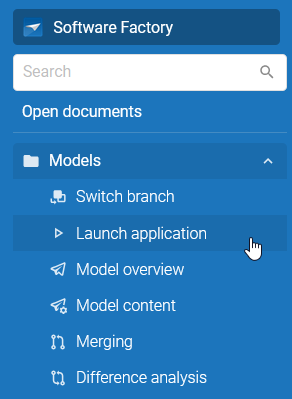 Launch your application directly from the menu in the Universal UI
When you execute Launch application, the application is launched in a new browser window using the default runtime configuration of your active branch. You can also launch your application using a specific runtime configuration from the menu Maintenance > Runtime configurations.
From Thinkwise platform 2026.1 onwards, you will need the Universal UI both for developing in the Software Factory,
which runs on Meta Source
IAM,
as well as for testing applications against the Software Factory as Meta Source.
We recommend setting your default Meta server URL in the Universal UI config.json to
indicium/iam/iam instead of indicium/iam/sf.
Launch Application will always open your application against the Software Factory.
Generic - Updated icons for 'Rename' and 'Modify' tasks
changePreviously, the icons for Rename and Modify tasks were the same as the icon for the Edit button, which could confuse users.
 Previous icon for 'Rename' and 'Modify'
To improve clarity and user experience, we have updated the icons for these tasks in the Software Factory and Intelligent Application Manager.
 Updated icon for 'Rename'
 Updated icon for 'Modify'
Generic - Added 'Tags' to menu and multiple screens
changeTags are properties that you can freely define. You can link tags to table rows and assign a custom value to store information that is not available in the Software Factory's meta model.
Previously, Tags could be accessed through specific menus depending on the object type. For example, you could access tags for tables via the menu Data > Data model > tab Tables > tab Table tags. This made it challenging to manage tags across the entire model.
You can now access Tags from the menu in the Software Factory (menu Enrichments > Tags). From this menu, you can access an overview of all tags in the model. This simplifies the management of tags in your model. Additionally, we have removed Tags from the menu Models > Model content > tab Tags.
Generic - 'Tags' available for Web connections
Community idea newIn the menu Integration & AI > Web connections, we have added the tab Tags in the following locations:
- tab Web connection tags
- tab Web connection > tab Web connection parameters > tab Web connection parameter tags
- tab Endpoints > tab Endpoint tags
Adding tags to Web connections allows you to store additional information about your Web connections, such as categorization, metadata, or custom attributes.
Models - Use PostgreSQL as database type
newPostgreSQL is an open-source and freely available database with a strong track record in enterprise applications. It is known for its robustness, compliance with standards, strong ecosystem, and its permissive open-source license, which eliminates database licensing costs. The Thinkwise Platform now supports PostgreSQL as a RDBMS, offering more flexibility in database choice while maintaining the same model-driven development experience. You can select PostgreSQL as the database type when creating a new model in the menu Models > Model overview > task Create model.
The Software Factory provides support for PostgreSQL, including:
- New schema-based upgrade script, where new objects are placed in a different schema and switched after a successful upgrade.
- All logic concepts, including
BEFORE,AFTER,ROW, andSTATEMENTtriggers. - Default values and queries for columns.
- Calculated fields or generated columns.
- Meta auto and custom views.
- Creating extensions.
- And much more!
Some features are currently unavailable and are planned to be implemented in an upcoming release, including:
- Unit tests.
- Smoke tests.
- Table partitioning.
- System-versioned and temporal tables.
- Creating unlogged tables.
- Thinkstore models.
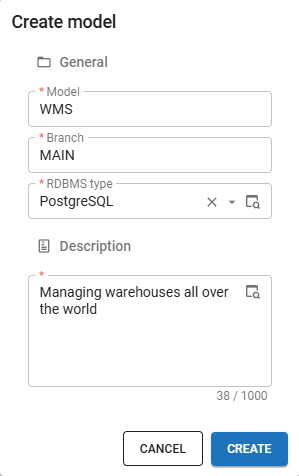 You can now select PostgreSQL as database type when creating a new model
Data - Data migration for system versioned tables
newYou can now set up data migration for system-versioned tables, allowing you to migrate data between system-versioned tables while keeping the full history. This can help prevent historical records from having their value outside of the (new) valid range. For instance, enforcing a percentage to be between 0 and 100, the history records can then be updated to 100 for all records.
To set up data migration for system versioned tables, go to the menu Data > Data migration > tab Columns
and execute the task Update column mapping  (or press Alt + U).
In the pop-up, complete the fields on the tab History data mapping:
- From column
- Default value type
- Default constant value
New mandatory columns and optional columns that became mandatory columns must have an explicit default value for the history data. The default value used for the main table is not applied to the history table, because it may not be valid to the history data. A validation has been added to alert you if this situation occurs.
Columns marked as a Calculated field or Calculated field (function) may be treated as mandatory by the RDBMS and may therefore require a default value for the history data.
Data - Control set to 'Combo' when creating domain elements
Community idea change Universal UIYou can create domains and add control types to determine how data is displayed in the user interface. When creating a domain, you can add domain elements to provide predefined values. These values can then be selected in the user interface using a lookup.
Previously, if you created domain elements for a domain with a control type that was not Combo, Image combo, or Radio button, lookups could behave incorrectly in the Universal UI. To prevent this, the Software Factory now automatically adjusts the control type. When you create domain elements and the control type of the domain is not set to Combo, Image combo, or Radio button, the control type is set to Combo.
Data - Alias fields deprecated for Oracle
change OraclePreviously, Oracle object names were limited to 30 characters. As a result, alias fields were implemented in the Software Factory, allowing you to provide shorter names for objects that exceeded this limit. Since Oracle Database 19c, object names can be up to 128 characters long. This means alias fields are no longer necessary in the Software Factory for Oracle. For new objects and existing objects without an alias, the alias field is no longer available. To minimize impact, existing alias data remains intact.
We have also removed validations related to alias fields to align with this change.
User Interface - Grouped actions in the action bar
new Universal UIYou can now group action buttons in the action bar into dropdown menus. This can be done for tasks, reports, prefilters and cube view actions.
Previously, the setting Submenu was ignored by the Universal UI. You can now use this setting to group actions for tasks, reports and cube views together. Grouped actions then appear under a group button in the action bar, allowing for better organization of similar actions.
Group buttons are styled similarly to regular action bar buttons, but have an additional dropdown icon at the end. If a group button is selected, menu items have the same styling as items in the overflow menu.
 Group actions in the action bar
You can customize grouped actions by setting up a Custom display type, allowing you to display grouped actions differently for each screen. To further customize the appearance of grouped actions, you can add custom Icons for the group buttons.
To set up grouped actions and custom Icons, see the documentation:
When setting up grouped actions, the following applies:
-
By default, group buttons use the same Display type and collapse behavior as their corresponding actions. This is defined in the default action bar or custom action bar. For example, if an action bar has the Default display type set to Icon + text (> text > icon) for Tasks, grouped buttons for tasks will also have this behavior. You can also select a Custom display type for the group button to display grouped buttons differently for each screen.
-
If the group button is in the overflow menu, its actions are grouped by dividers. A group button can appear in the overflow menu if:
- The Display type is set to Overflow.
- There is not enough space in the action bar to show the group button.
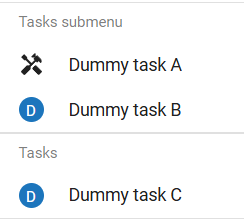 Grouped action buttons in the overflow menu
 -
If all actions are Hidden by model rights or a context procedure, the group button is also hidden. If one or more actions are not hidden, the group button is still shown with these actions.
-
If all actions are Disabled by model rights or a context procedure, the dropdown menu can still be opened by clicking the group button.
-
If a task or report action in a group is a Primary action, the group button is styled like a Primary action.
-
If one or more checkboxes in a grouped button in a prefilter or cube view menu are selected, the group button has a border in the primary color.
 Group buttons have a border when one or more checkboxes are selected
Additionally, we have made several related improvements:
-
User-defined prefilters are now available under the group button Own prefilters in the action bar.
 Users can find their prefilters by selecting 'Own prefilters'
 -
All dropdown menus now have a scrollbar when they do not fit within the screen.
-
When loading buttons in the overflow menu is delayed due to network issues, they are now visible as soon as they are loaded.
-
Action bar buttons no longer have a border when selected. This border is now only shown when the buttons are hovered.
-
Prefilters in any dropdown menu no longer close the menu when selected, so you can now select multiple prefilters without reopening the menu.
It is not recommended to use grouped action buttons when there is only one action in the group. This may confuse users and negatively affect the user experience. We have added new validations to alert you when there are grouped action buttons with only one action. We have also added the enrichment Deactivate submenu for groups with only one member (menu Enrichments > Model enrichments), to solve all of these validation messages at once.
Grouped action buttons can freely be implemented in applications that are on Thinkwise platform version 2026.1 or higher.
However, if you want to use grouped action buttons on a version lower than 2026.1, set the extended property enabledropdownforsubmenu to true.
If you use this extended property, the following limitations apply:
- You can not set Icons for group buttons.
- You can not set a Custom display type for group buttons.
- User defined prefilters are not part of the group button Own prefilters.
User Interface - All application languages now available
changePreviously, when viewing applications on the SF meta source, the selection of application languages was limited to the language of the user currently logged in. This meant that users could only view applications in their own language. Now, this list includes the current user's language and all other application languages to which the user has access. This improvement allows users to switch to different languages and view applications with other translations.
User Interface - New options for Scheduler views
new Universal UIWe have added new options to customize the appearance of a Scheduler view in your applications. You can configure these options in the menu User interface > Schedulers > tab Default/Variant > tab Scheduler view.
The following options are now available:
- Time cell min width - enter a value in pixels to set the minimum width of time cells. This allows you to make the time cells larger for better visibility if needed. If the value is not set, the width is determined automatically based on the available space.
- Min displayed time - specify the minimum hour value to hide certain hours. The minimum hour must be smaller than the maximum hour.
- Max displayed time - specify the maximum hour value to hide certain hours. The maximum hour must be greater than the minimum hour.
- Hide Monday/Tuesday/Wednesday/Thursday/Friday/Saturday/Sunday - enable the relevant checkboxes to hide individual days of the week. This option is only available if the checkbox Day is selected in the group Use timescales.
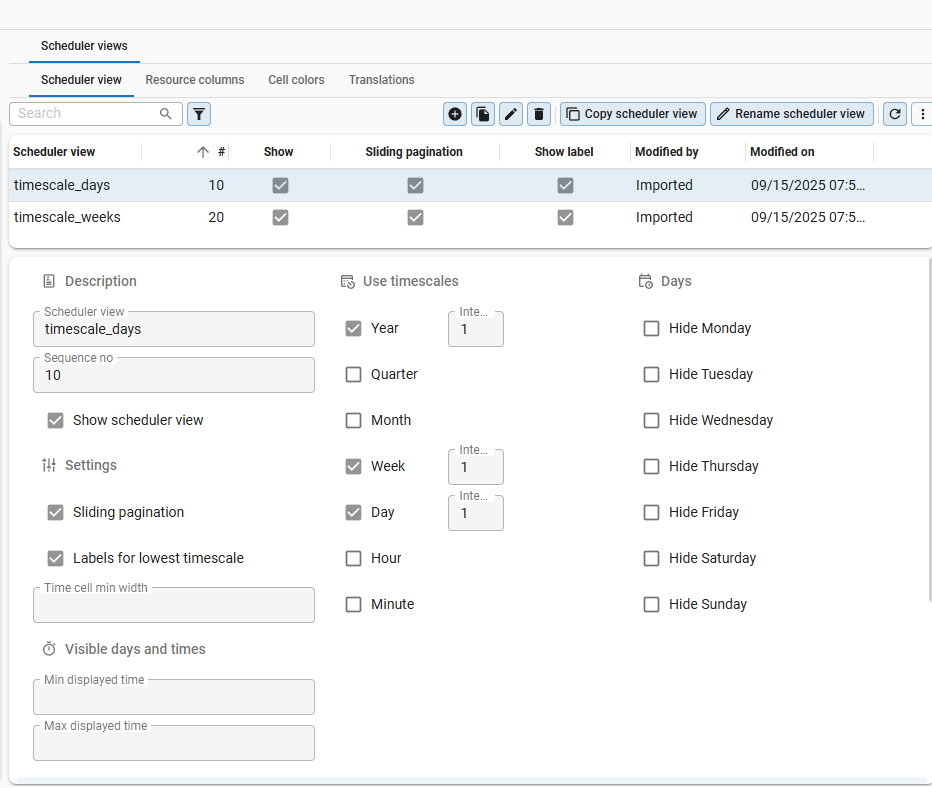 New options to customize a Scheduler view
User Interface - Set 'Auto row height' in grids
newYou can now use Auto row height to control the row height dynamically in grids. This option is available for grids that contain either:
- Multiline controls with the the checkbox Word wrap enabled.
- HTML controls
Select Auto row height from the overflow menu in the action bar. When this is selected, the option Default row height becomes available to disable it again. By default, these options are available in the overflow menu, but you can change this behavior in a custom action bar.
If Auto row height is enabled, the following behavior occurs:
- Each row in the grid will adjust its height based on the content within that row.
- In editable grids, when typing in a Multiline control with Word wrap enabled, the row height will dynamically increase or decrease as text is added or removed.
- When you change the Auto row height setting, the active row will be scrolled to the top of the screen to prevent scrolling issues.
- When you switch between subjects, the Auto row height setting is remembered for each subject. This setting is not stored in the browser or user preferences.
When you have enabled Auto row height in a grid with many rows, lazy height calculation is applied to optimize performance. This ensures only relevant row heights are calculated. This has several consequences, further described in Lazy height calculation.
User Interface - Support for messages in DB2
new DB2You can now use the tsf_send_message procedure to send informational and error messages from a DB2 template.
This was already possible for SQL databases.
Informational messages are useful to inform users about the progress of a long-running operation. For example, you can inform users about the current step in a multi-step operation. You can send more than one informational message. Informational messages do not interrupt any code execution.
You can send informational messages using the following code:
CALL tsf_send_message('my_informational_msg_id', '<text>Parameter value 1</text><text>Parameter value 2</text>', 0);
You can also use tsf_send_message to send error messages.
These messages are useful to inform users about errors that occur during code execution.
For example, you can inform users about invalid input or missing data.
Error messages interrupt code execution by default.
If you send an error message, any previously sent informational messages are not shown.
You can send error messages using the following code:
CALL tsf_send_message('my_error_msg_id', '<text>Parameter value 1</text><text>Parameter value 2</text>', 1);
Error messages sent using tsf_send_message were previously limited to 70 characters or fewer.
This is no longer the case.
Error messages can now contain up to 500 characters.
Progress messages sent using tsf_send_progress are not yet supported for DB2.
User Interface - Improved 'Subjects' screen performance
changeThe Subjects screen in the Software Factory has been optimized for better performance, as preparation for the Software Factory in the Universal UI. We have made the following changes:
- The tab Overview is removed.
- The form is displayed next to the grid for the selected subject.
- The grid is simplified by removing columns. The following columns remain:
- Icon
- Table
- Table type
Information that was previously available in the grid can be viewed in the form. You can use the tab Tables and tab Table variants in the menu Model overview > Model content to edit multiple tables or table variants at once.
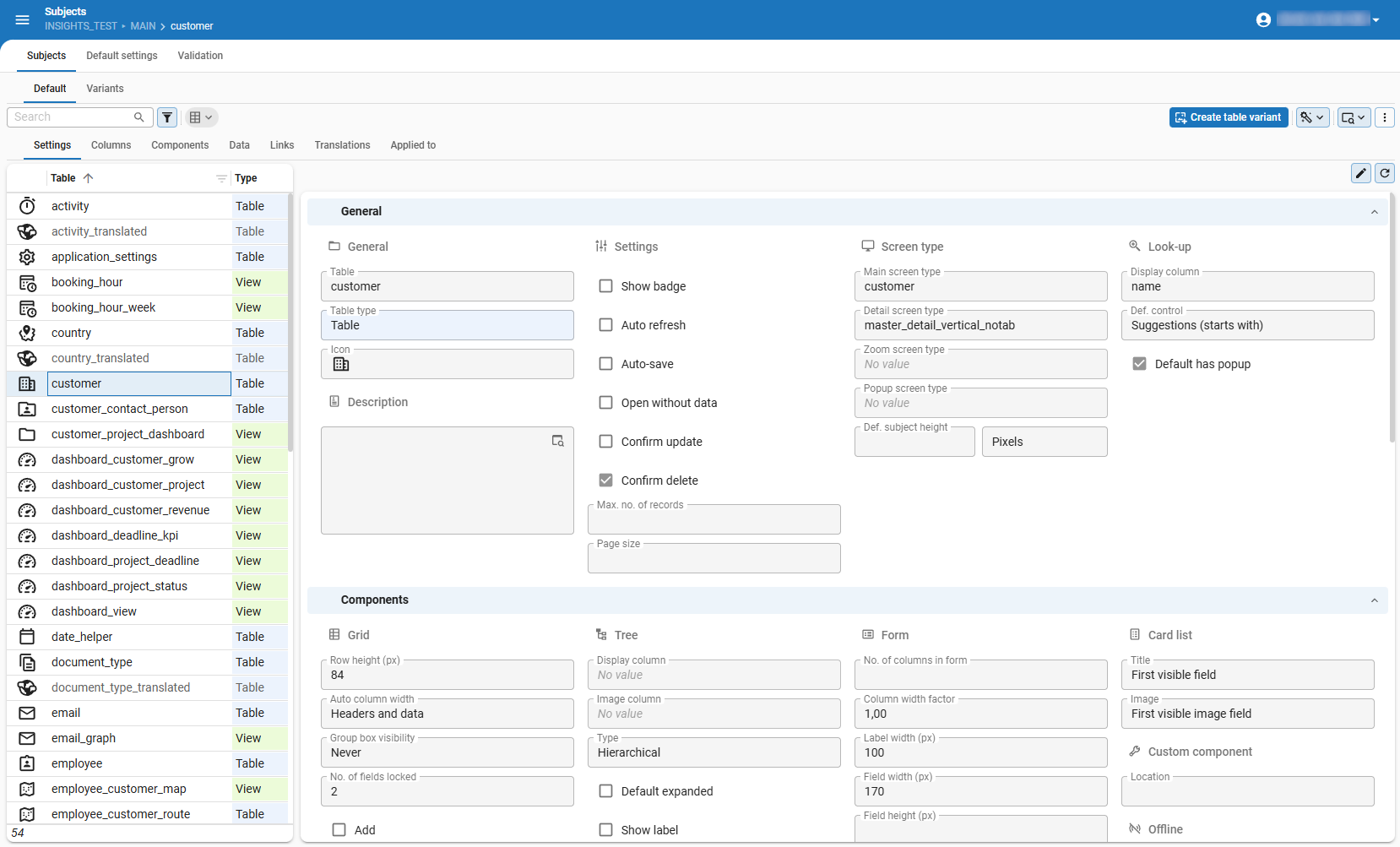 Improved 'Subjects' screen layout
User Interface - Improved layout and filtering for 'Screen types'
Community idea newIn the Screen types screen (menu User interface > Screen types), you can now filter by screen component types in the FormList on the right side. This makes it easier to assess whether an existing screen type is suitable for the screen you are working on, and encourages reuse. Additionally, we have updated the screen layout to better use the available space after introducing the screen component type filter. The tabs Form, Assign to subjects, Assigned as breakpoint have been moved to the top of the screen, above the grid. The grid now uses the full width of the screen, providing more space to display all fields. In the FormList on the right side of the screen, you can now filter screen types by screen component types.
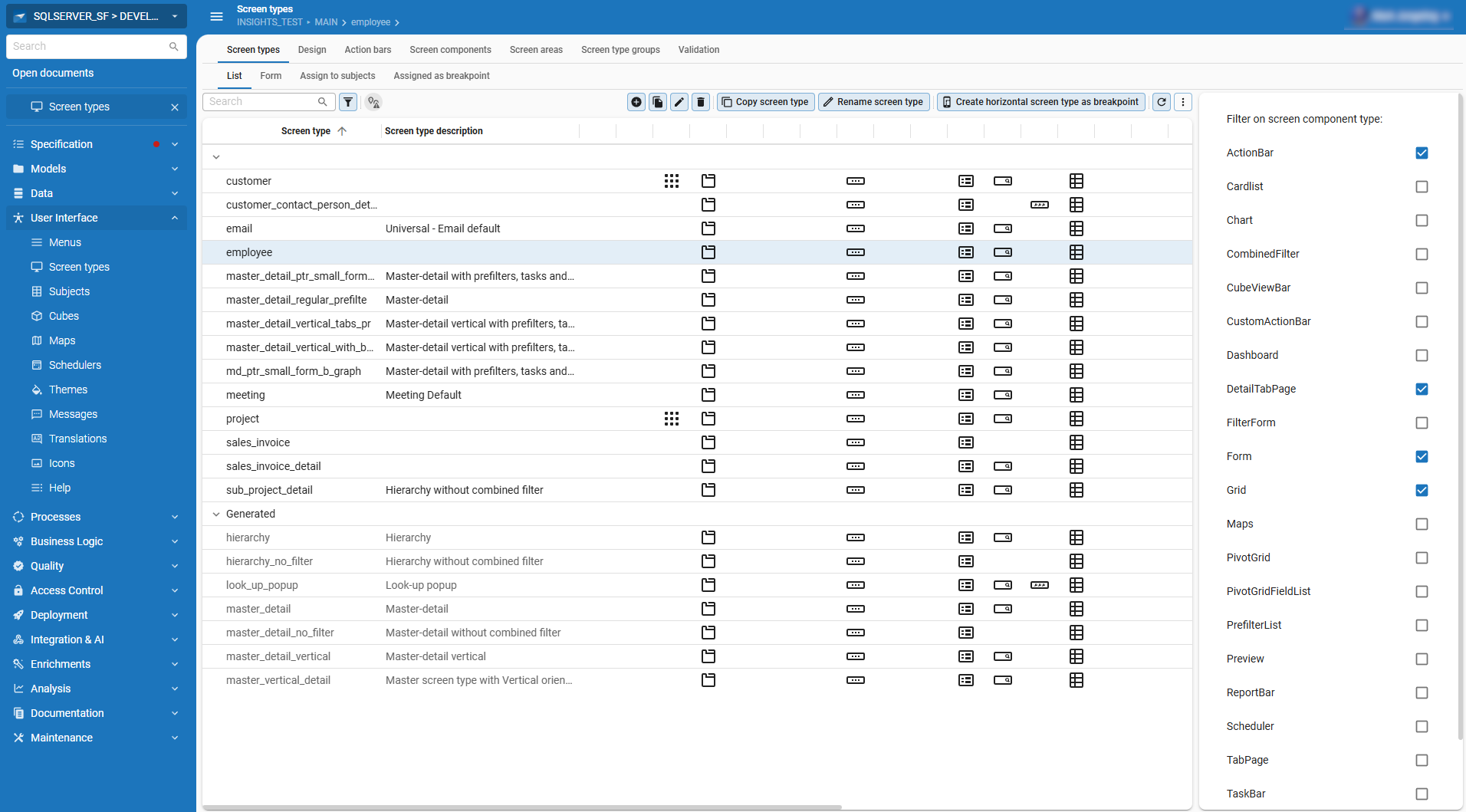 Improved layout of the Screen types screen
User Interface - Improved layout and filtering for 'Thinkstore'
changeWe have improved the layout of the Thinkstore screen (menu Enrichments > Thinkstore) to improve usability in the Software Factory when using the Universal UI. The FormList has been moved to the right of the screen, allowing for better visibility of the available filters. We have also optimized its layout so you can now comfortably use the FormList to filter Thinkstore items by categories and industries. Additionally, fields in the tab Form are now arranged vertically instead of horizontally, providing more space for other elements on the screen.
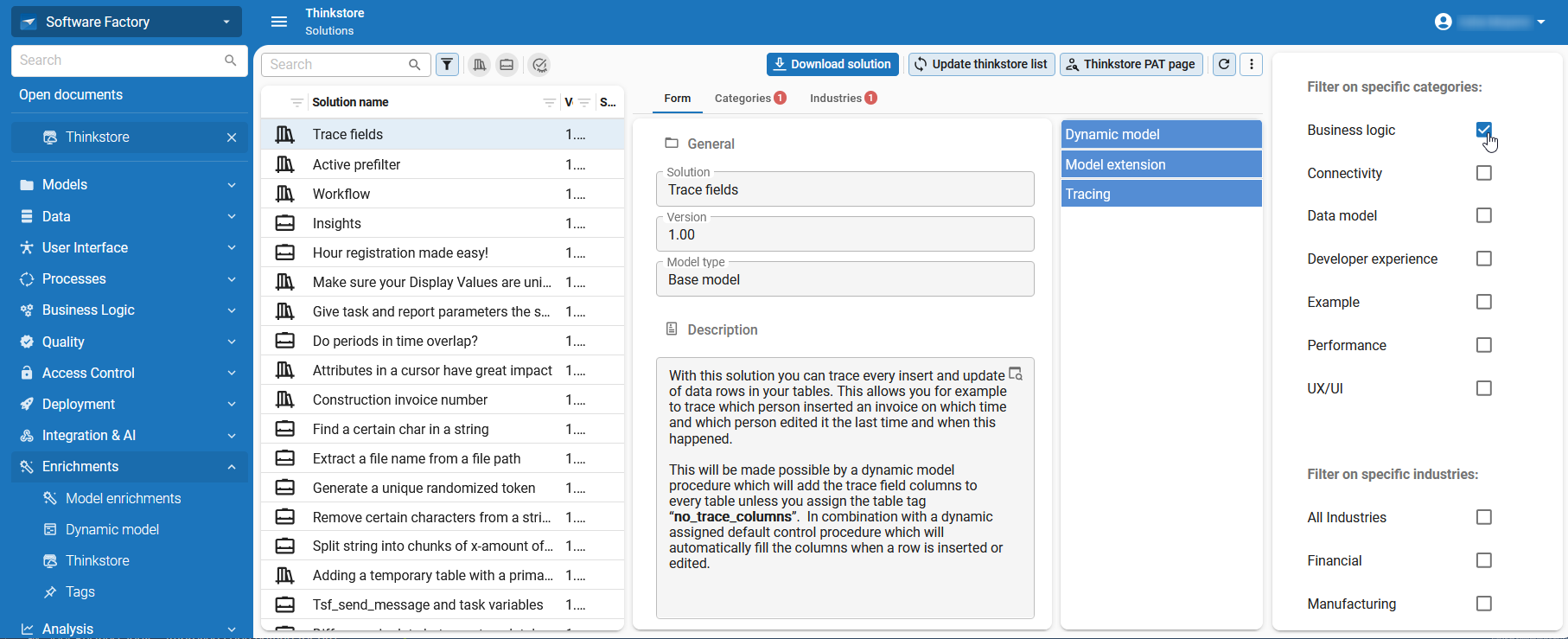 Use the 'FormList' to filter Thinkstore items by categories and industries
User Interface - Added task to 'Icons' screen
newThe enrichment Decolorize all SVG icons that contain black fill color is already available in the menu Enrichments.
This enrichment automatically decolorizes all icons within the model and branch that you are working in.
Using this enrichment can help maintain a consistent look and feel across your application icons.
To increase visibility and usability, we have added this enrichment as the task Decolorize SVG icon  in the menu User interface > Icons.
This task automatically decolorizes the selected icon.
in the menu User interface > Icons.
This task automatically decolorizes the selected icon.
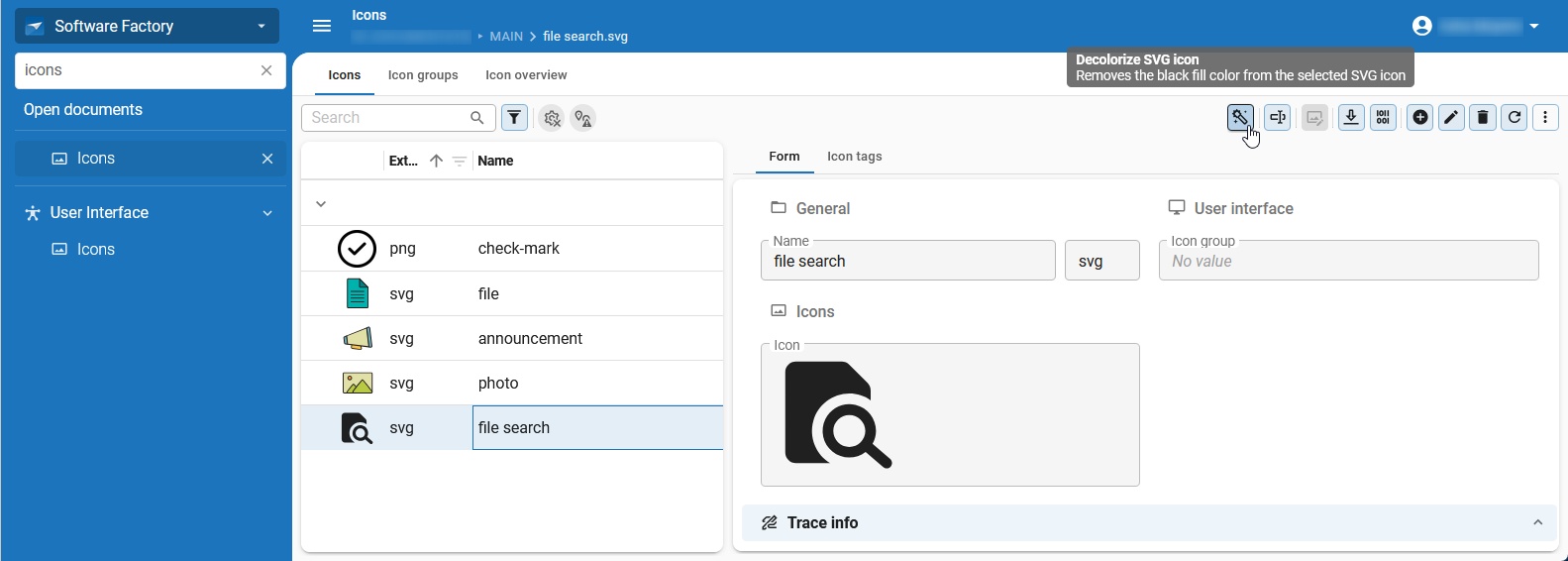 The task 'Decolorize SVG icon' is now available in the 'Icons' screen
User Interface - Updated styling for tasks and reports
change Universal UIThe Intelligent Application Manager was already available in the Universal UI, but now the Software Factory is also available in the Universal UI. To ensure a consistent look and feel across both applications, we have updated the following for tasks and reports:
-
Tasks and reports have been merged into action bars where possible. Most tasks and reports are now displayed in the right corner of the action bar.
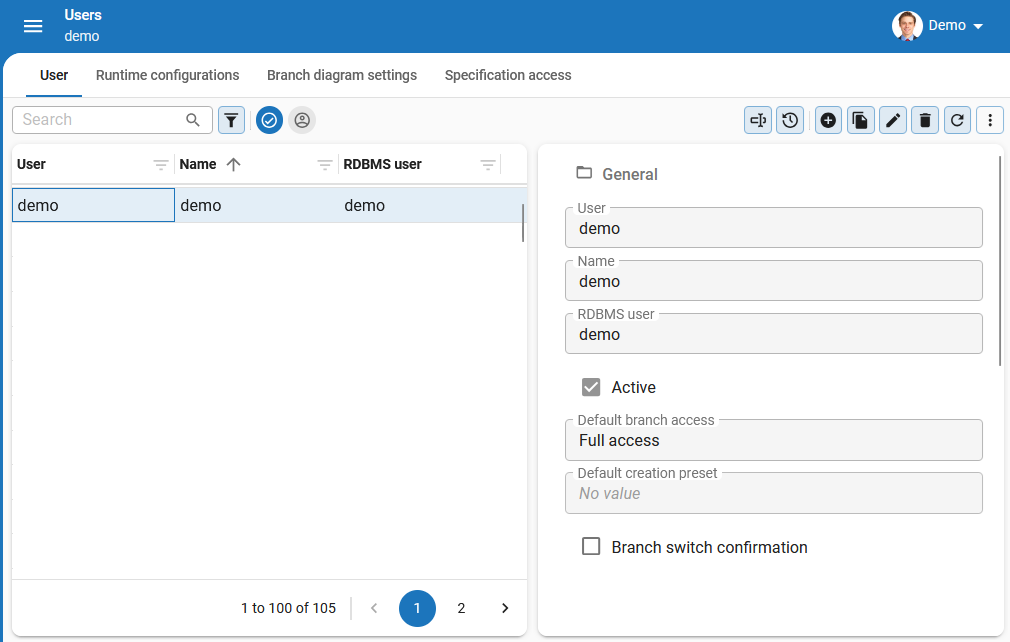 For example, tasks in the 'Users' screen now appear on the right side of the action bar
 -
Task and report buttons are now slightly smaller to match styling in the user interface.
-
Action bars now include grouped actions, see User Interface - Grouped actions in the action bar for more information.
User Interface - Grouped conditional layout settings
changeAs a result of upgrading the Software Factory to the Universal UI, we have made optimizations to the layout of conditional layout settings. Settings for the Universal UI are grouped under the group Universal and are always shown first. All settings that only apply to the Windows GUI are now grouped under the group Windows.
This is applied for all instances where conditional layout settings are available, including:
- menu User Interface > Subjects > Default/Variants > Data > Conditional layout
- menu User Interface > Cubes > Cube views > Conditional layout
- menu Processes > Reports > Conditional layout
- menu Processes > Tasks > Conditional layout
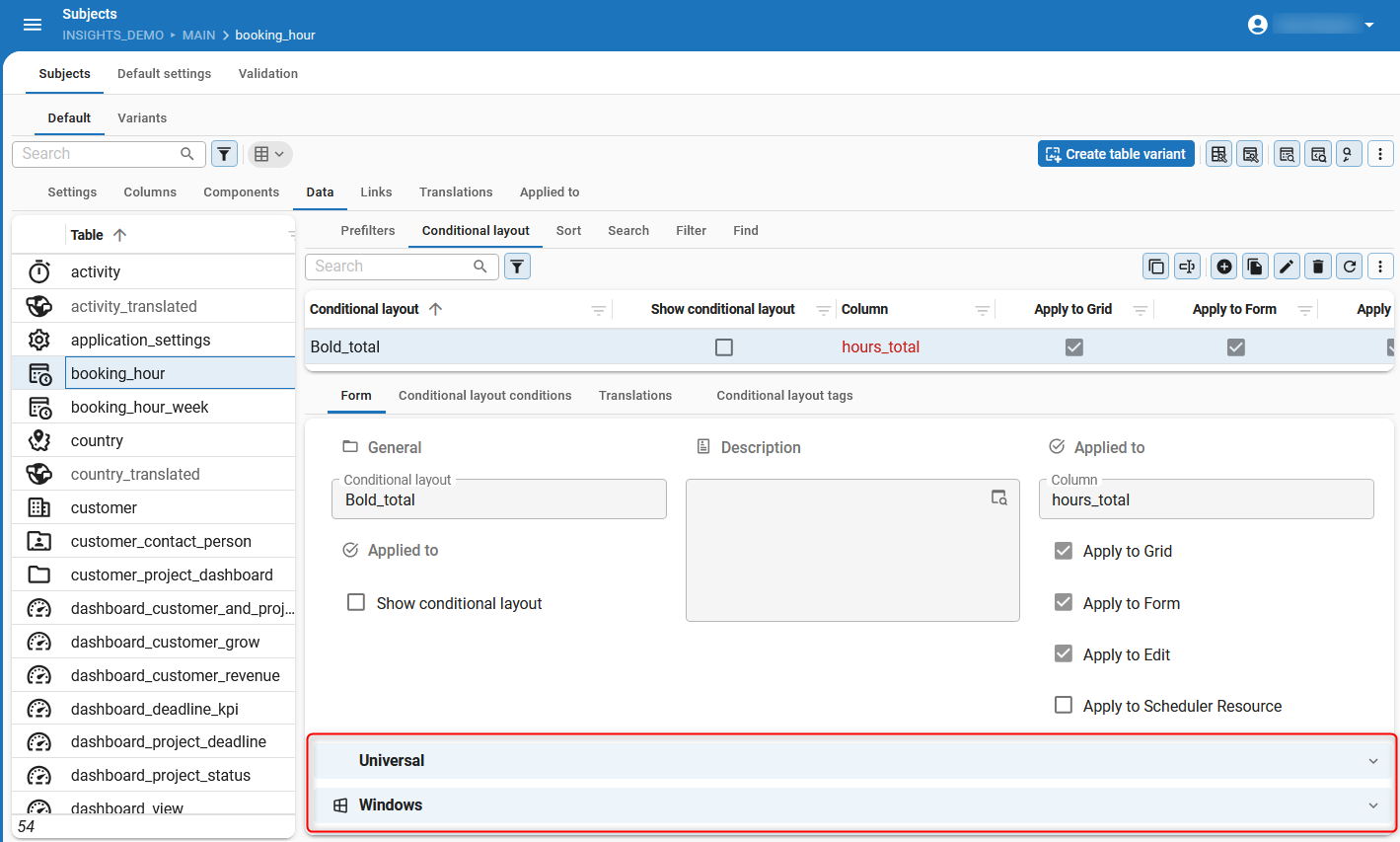 Conditional layout settings are now grouped based on the target UI
User Interface - Updated translations for settings
changeAs part of launching the Software Factory in the Universal UI, we have updated some translations for settings to align with the naming conventions used in the Universal UI.
- Start empty with filter is now Open without data (menu User Interface > Subjects > tab Settings > group General).
- Field on next tab page is now Field in next section (menu User Interface > Subjects > tab Components > tab Form).
- Copy to clipboard is now Copy to clipboard / Export (menu User Interface > Subjects > tab Columns > tab Form).
Additionally, we have hidden the setting Add row visibility in the Universal UI, since it only supports When adding.
Processes - Add subflows to process flows
Community idea changeA highly requested feature from the Community is the ability to use subflows within regular process flows. Previously, you had to create separate subflows, if you wanted to reuse process logic. Additionally, it was not possible to use regular process flows as subflows and they could only be created from system flows. With this platform update, you can now use any process flow as a subflow, as well as nest subflows within other subflows.
For this functionality, the following process actions have been added:
-
Execute user subflow - starts any process flow. Use this process action to build functionality such as opening documents or showing messages as a result of a user interaction. User subflows are limited to the user rights, meaning that the user can only execute actions they have permission for. It is not recommended to include system subflows in a user subflow, since it may not run due to permission limitations. Subflows with this process action can not be run asynchronously.
-
Execute system subflow - only starts system flows. System flows are process flows that are triggered without user interaction and handled by Indicium. Use this process action for building system-level automation, such as clean-up jobs or periodic synchronization. These process flows can be scheduled and run asynchronously in the background.
These and other process actions can be triggered by actions in the user interface and API calls. For example, the process action Open document can trigger the start of a new process flow.
You can use the following settings to override the default starting trigger behavior of process flows (menu Process flow > tab Form > group Starting triggers):
- User action - If enabled, the process flow can be started by user actions in the user interface.
- Deep link - If enabled, the process flow can be started via a deep link URL or API call.
- Custom protocol - If enabled, the process flow can be started via a custom protocol API endpoint.
These are mutually exclusive options used to determine whether a process flow can be started by a user action, from a link or by a call to a custom API. If you plan to reuse process flows as subflows, you can use these settings to prevent unintentional execution. For example, if you have a subflow with Open document process action and use it in multiple places, you may not want the subflow to be started when the Open document action is triggered. You can prevent this by clearing the checkbox User action to prevent the process flow from being started directly from the UI.
Process flows can also be started from an API call. We have added the setting API in the group Starting triggers. Clear this checkbox to prevent process flows from being started via an API call. This can only be done when all of the other checkboxes are cleared.
Execute user subflow and Execute system subflow replace the existing Execute subflow process action. This means that Execute subflow is no longer available when you upgrade to Thinkwise platform version 2026.1. It remains available in lower versions. See the Lifecycle policy for more information on what versions are still supported.
When you upgrade, the following migrations are applied to your existing process flows:
- If the Asynchronous input parameter
is set to
Nofor a process flow, it is migrated to a Execute user subflow process action. - In any other cases, process flows are migrated to Execute system subflow.
- By default, Use starting points is disabled for system flows. It is also mutually exclusive with Deep link allowed and Custom protocol. This is because system flows are not intended to be started from starting points within your application.
As a result of this migration, any custom code that checked for process action type Execute subflow (value 760) may need to be updated.
Execute system subflow retains the value 760, so code that only needs to check for system subflows does not need to be changed.
Execute user subflow now uses 761, so code that should only apply to user subflows must be updated to check for 761.
When the code should handle both system and user subflows, it must be updated to include both 760 and 761.
This applies to dynamic control procedures, dynamic model code, custom validations, and custom enrichments.
As a result of this change, the distinction between process flows and subflows is no longer necessary in the Software Factory. We have therefore removed the screen and menu item Subflows. To help you see where a process flow is called as a subflow, we have added the tab Usage.
Processes - Process action 'Open filter'
Community idea new Universal UIThe process action Open filter is now available to use in process flows. This action allows you to open the Filter pop-up in the Universal UI on any available subject. If you use this process action after an Open document process action, the filter pop-up is opened directly after the document is opened. In this way, the new process action helps replace Start empty with filter for the Universal UI. This process action does not have any input parameters, but it has the following output parameters:
- Status code (0 = successful)
- Status code (-1 = unsuccessful) This code appears if filtering on a variant is not allowed. See Filter and Find for more information.
Processes - Added maximum length for process steps
changePreviously, if the process step names exceeded the maximum length allowed by the underlying database, it could cause problems during generation or deployment. To prevent this, we have introduced maximum lengths for process step names based on the RDBMS.
Now, when a process step name exceeds the allowed length, the name is shortened to fit within the limit.
The shortened name is automatically generated by combining parts of the previous step and next step names, ensuring uniqueness by adding numeric suffixes if necessary.
For example, if action_a is followed by action_b, the resulting process step name would be action_a_action_b.
If that is too long, then it it is shortened to act_action_b001.
If the resulting name is still too long, it is further shortened to on_a_on_b001.
If more than 1,000 process steps share the same base name, the suffix range is exhausted. In that case, the process step must be renamed manually. For usability and maintainability, it is recommended to keep process step names concise and clear. You can rename the process steps in the menu Processes > Process flows > tab Process steps.
Finally, we have added a validation checking existing process steps to ensure that their names adhere to the new length restrictions.
Processes - Added export to Excel for i-net Clear Reports
new Universal UIWe have added support in the Software Factory for exporting i-net Clear Reports to Excel format (.xlsx) in Indicium.
Business logic - Improved code editing for program objects
changePreviously, developers were restricted from editing certain types of business logic code directly in a code editor (menu Business logic > Functionality > tab Deploy). This applied to subroutines with an atomic transaction block, handlers with default statements, Oracle views, tasks with a 'try...catch' block and various other business logic code blocks in a code editor.
To resolve these issues, we have updated the structure for direct editing of program objects and items.
Program object items are now clearly marked with --prog_object_item end: <prog_object_item_id>, indicating the end of each item.
As a result, you can now edit existing logic code with minimal limitations in a code editor.
This applies to code placed between the following code blocks:
--control_proc_id:      <control_proc_id>
--template_id:          <template_id>
--prog_object_item_id:  <prog_object_item_id>
--template_description: <template_description>
Changing any structural code outside of these blocks will result in an error.
You can still fully remove a logic block from the code, which removes the assignment, the template and control procedure if they are no longer in use. Updating the template description is also still possible. See below for further limitations.
Limitations when editing program objects in a code editor
- You can no longer add new program object items. These can be added via the menu Business logic > Functionality > tab Assigning.
- You can no longer reposition program object items. You can reposition them in the tab Assigning.
- You can not edit dynamically assigned code.
- You can not edit parameterized code.
- You can not provide different code modifications for the same template when a template is assigned more than once.
Lastly, we have improved handling of different line-break styles, for example, for UNIX and Windows. This ensures consistent behavior when editing code across different operating systems.
As a result of this change, most application logic code is flagged as modified when you re-generate the source code for your model. This is necessary to realign the code in your database with the new structure of the generated code.
Access control - Progress bar added for roles
changeWhen you assigned role rights using the task Assign rights  and selected the option Execute immediately to update the model,
there was no visual indication of the task's progress.
To improve clarity, a pop-up with a progress bar is now shown after assigning role rights and immediately updating the model.
and selected the option Execute immediately to update the model,
there was no visual indication of the task's progress.
To improve clarity, a pop-up with a progress bar is now shown after assigning role rights and immediately updating the model.
Deployment - Added 'copy_gui_appl' task for CI/CD tooling
We have added the task copy_gui_appl for API calls that are executed by CI/CD tooling.
This task copies the application parameters to a new application or updates an existing application.
To use this task in CI/CD tooling, send a POST request to IAM: https://server.com/indicium/iam/iam/copy_gui_appl.
{
"from_model_id": "INSIGHTS",
"from_branch_id": "MAIN",
"from_gui_appl_id": 394,
"to_model_id": "INSIGHTS",
"to_branch_id": "MAIN",
"insert_gui_appl": 1
}
You can set insert_gui_appl to:
0- to copy an existing application In this case, you must also provide the parameterto_gui_appl_id.1- to add a new application
To prevent future breaking changes, we recommend that you use copy_gui_appl instead of create_gui_appl_from_gui_appl.
However, if you want more control over each available option, create_gui_appl_from_gui_appl is more appropriate.
Deployment - Updated path separators in manifest
changePreviously, when creating a deployment package in the Software Factory in a Linux environment, the manifest file would use Windows-style path separators which were not compatible with Linux systems.
To ensure compatibility across different operating systems,
the Software Factory now generates the manifest file using Unix-style path separators (/), instead of Windows-style path separators (\).
This change does not affect deployment to Windows environments, as Windows systems can handle both types of path separators.
Integration & AI - Use binary data in Web connection endpoints
newYou can now use binary data in Web connection endpoint form fields if the endpoint uses a multipart form. This means that you no longer need to use the HTTP connector as a workaround to send binary data via a Web connection.
To upload a file via multipart form, go to the menu Integration & AI > Web connections > tab Endpoints.
Set up a new endpoint
or Edit  an existing one.
Select Multipart form as Body type for the Web connection endpoint.
Then, go to the tab Form fields and Add
an existing one.
Select Multipart form as Body type for the Web connection endpoint.
Then, go to the tab Form fields and Add  a new field.
You can assign values using parameters in the fields Content type and File name.
For example, you can use the parameter {file_name} as File name to assign the file name dynamically.
You can also use binary data in parameters, by adding a process variable
in your process flows.
Furthermore, you can call endpoints in process flows by using the
Web connector process action.
If you want to send binary data to an endpoint without using multipart form, this is also possible.
Set the Body type to Other and the Content type to application/octet-stream or another preferred content type.
Then, in the field Body, add the parameter {body} and assign a binary process variable to the corresponding input parameter.
Enrichments - PAT for Thinkstore solutions
changePreviously, after selecting a solution to download from the Thinkstore, you needed to log in to proceed with the download. After logging in, an access token would be returned and used by the Software Factory to download the solution. An OpenID provider requires a predictable redirect URL to successfully log in for a 3-tier architecture, which was not possible in the existing process.
Authentication now works with the Web connection thinkstore_connection from Thinkwise platform 2026.1 and higher.
This connection can be set up in IAM for the SQLSERVER_SF application, similar to how a Generative AI provider is configured.
To configure the Thinkstore connection, go to https://store.thinkwisesoftware.com/indicium/account/ui/pat/ and sign in using your TCP login account.
Then, create a personal access token by selecting New access token.
In the group Details complete the following fields:
- Application - select
thinkstore-v1 - THINKSTORE 1.13 - Token name - enter any desired name for the token
- Expiration date - set a desired expiration date (maximum one year ahead)
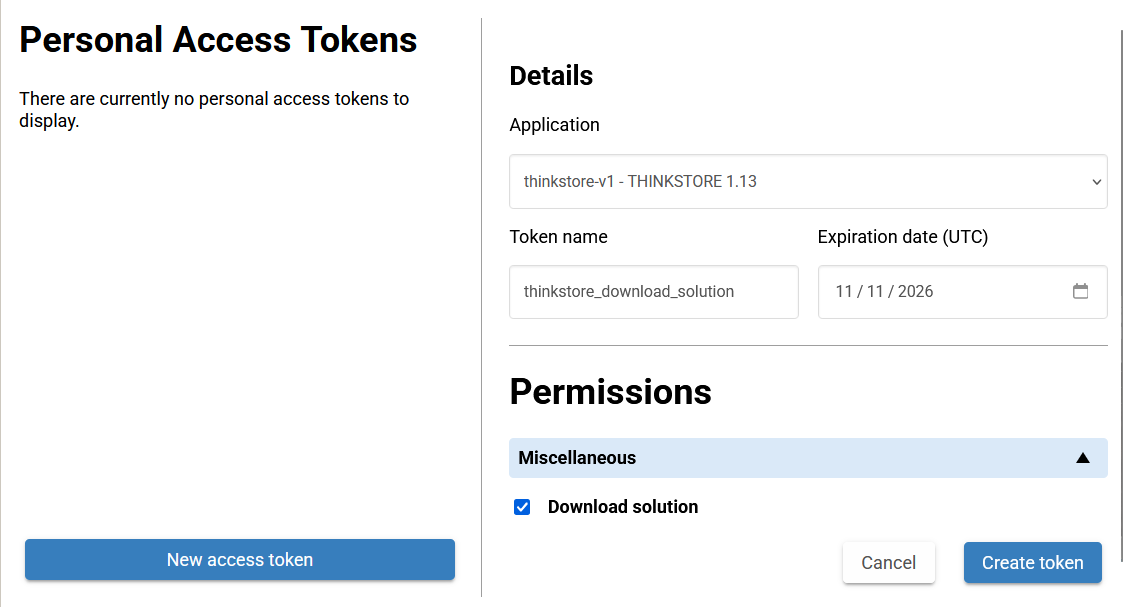 Create a personal access token
After this, set up Permissions for the token. In this case, select Download solution to allow downloading solutions from the Thinkstore and select Create token to create the token.
The token is only displayed once after creation. Be sure to copy it and store it securely, as you will not be able to view it again after leaving the page.
Copy the token and in IAM, go to the menu Authorization > Applications.
Select the application SQLSERVER_SF and go to the tab General settings > tab Web connections.
Execute the task Set web connection key values (encrypted)  and enter the copied token as Bearer token.
Select Execute to complete the setup.
Downloading a solution still works the same as before, see Find, download, and install your solution.
and enter the copied token as Bearer token.
Select Execute to complete the setup.
Downloading a solution still works the same as before, see Find, download, and install your solution.
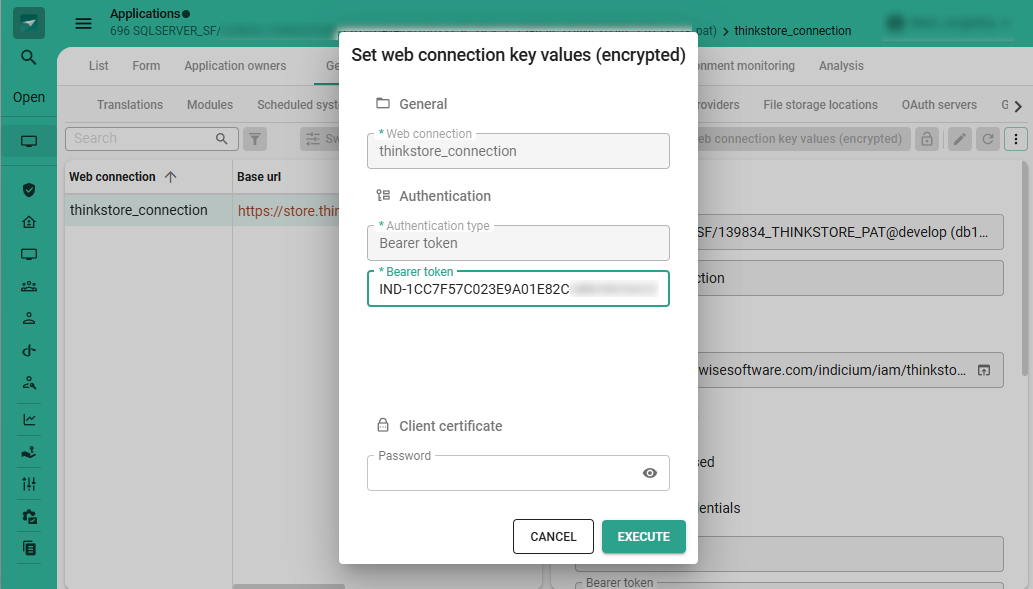 Add the personal access token as 'Bearer token' in IAM
Maintenance - Add exemptions for response size limit for table endpoints (SF)
newIndicium imposes a response size limit on table and table variant endpoints.
Instead of retrieving the full dataset in a single request, Indicium returns a subset of the data with an @odata.nextLink property.
This property is used in a subsequent request to fetch the following subset of the dataset.
By default, all Thinkwise GUIs automatically handle this mechanism.
However, there may be reasons to exempt a particular table or table variant from this mechanism.
For example, when an interface that integrates with Indicium can not be modified to support the @odata.nextLink property.
You can now exempt tables and table variants in the Software Factory for runtime configurations and in applications in IAM. To add an exemption, in the Software Factory, go to the menu Maintenance > Runtime configurations > tab Response size limit exemption. To improve recognition of the endpoint, the API endpoint URL is shown exactly as it is specified in the request URL for Indicium. Select the checkbox Exempted for the table or table variant you want to exempt.
When you set up exemptions for the default runtime configuration and synchronize your model to IAM, the exemptions will automatically be synchronized to your applications in IAM.
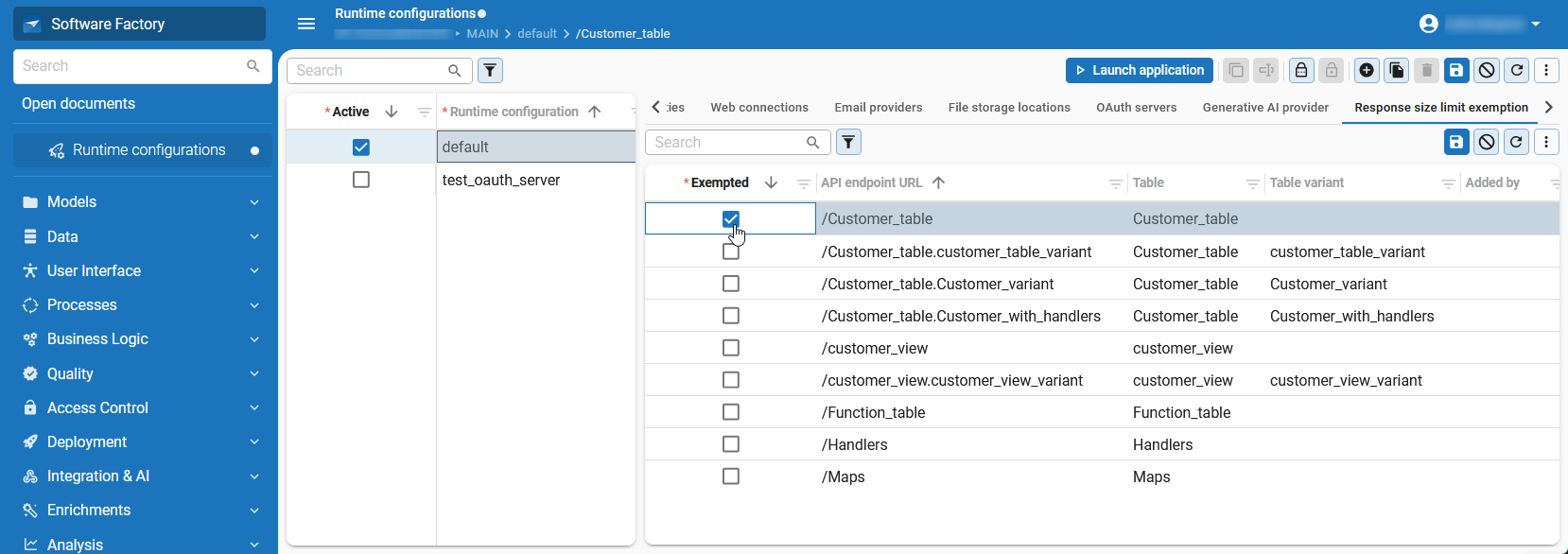 Set up exemptions for the response size limit in the Software Factory
Fixed in the Software Factory
-
You can specify a minimum and maximum value for domains. This creates a check constraint for objects that use that domain. We have made some improvements to how this is handled:
-
SQL When using a min/max value on numeric domains, quotes are no longer added around the values, as this would treat them as text.
warningIf a numeric domain was previously compared to textual values, you will no longer be able to apply the check constraint to the database. In that case, review the min/max value for this domain.
-
DB2 Oracle The syntax of this check constraint was incorrect when using a min/max value for a domain with a date/time related data type, preventing it from being applied to the database. This has been fixed.
-
-
All screens containing a tab Variants (Subjects, Tasks and Reports) contain tasks to maintain the variants per component, such as grids and forms. These tasks apply to table, task, and report variants. Previously, if the task Reset table/task/report variant was executed, an attempt was made to delete the entire variant. This could cause configuration loss or errors if the underlying data was present. This has been corrected, so the task only resets the settings in the tab Settings. The tasks have been renamed to Reset table/task/report variants settings
 .
. -
DB2 You can generate a view from a from-clause using the task Generate view from clause
 , in the menu Data > Data model > tab Tables.
Previously, the generated code for DB2 views sometimes included invalid and inconsistent syntax.
We have fixed this issue by updating the generation logic so it now produces correct code.
Furthermore, generation of code no longer relies on aliases of tables and columns in DB2 as this is not required.
, in the menu Data > Data model > tab Tables.
Previously, the generated code for DB2 views sometimes included invalid and inconsistent syntax.
We have fixed this issue by updating the generation logic so it now produces correct code.
Furthermore, generation of code no longer relies on aliases of tables and columns in DB2 as this is not required. -
Handler procedures were not cleaned up when they were not used or if a table was deleted. We have fixed this by including logic that removes unused handlers when you generate the source code for your model. If you want to do a full cleanup of handlers, select Full as your Upgrade method when you execute all creation steps.
New and changed in the Intelligent Application Manager
Users - Security checks included when copying an application
change 2025.3.12Previously, security checks were linked to an Application id.
If you copied an application by executing the task Copy application  ,
security check configurations were not included.
We have updated this behavior so security check configurations are now linked to the Application alias.
As a result, any security scans executed based on this configuration now run on the active application that uses the same alias.
,
security check configurations were not included.
We have updated this behavior so security check configurations are now linked to the Application alias.
As a result, any security scans executed based on this configuration now run on the active application that uses the same alias.
Authorization - Allow PAT creation by default for tenants and user templates
new main administratorAdministrators need to authorize personal access token (PAT) creation for each user individually. This setting would not be applied by default to new users within a tenant.
To simplify permission management for PAT creation, we have made the following new options available:
- Default allow PAT available in the menu Authorization > Tenant > tab Form.
When this option is enabled, new users within the tenant are allowed to create personal access tokens by default. - Allow personal access token creation available in the menu OpenID providers > tab User template > tab Form.
When this option is enabled, users created via the user template are allowed to create personal access tokens by default.
Authorization - Add exemptions for response size limit for applications (IAM)
newIndicium imposes a response size limit on table and table variant endpoints.
Instead of retrieving the full dataset in a single request, Indicium returns a subset of the data with an @odata.nextLink property.
This property is used in a subsequent request to fetch the following subset of the dataset.
By default, all Thinkwise UIs automatically handle this mechanism.
However, there may be reasons to exempt a particular table or table variant from this mechanism.
For example, when an interface that integrates with Indicium can not be modified to support the @odata.nextLink property.
You can now exempt tables and table variants in the Software Factory for runtime configurations and in applications in IAM.
To set up exemptions in IAM, go to the menu Authorization > Applications > tab General settings > tab Response size limit exemption. If you set up exemptions in the Software Factory, these will be synchronized to IAM.
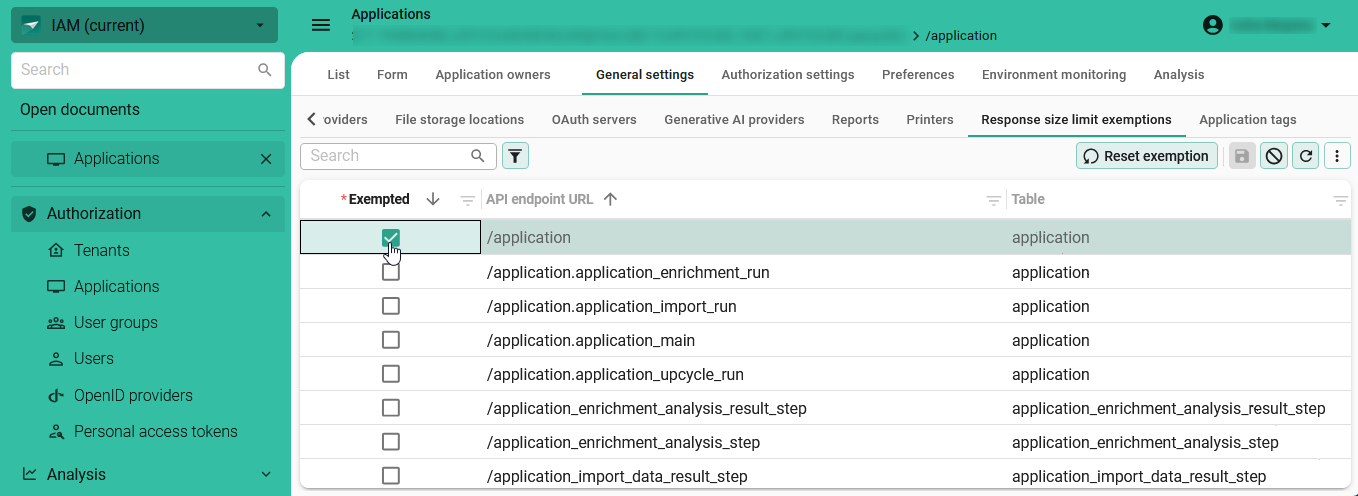 Set up exemptions for the response size limit for your applications
Complementary to this update, we have added the option Response size limit exemption
to the task Copy application in IAM in the menu Authorization > Applications.
With this option enabled, the response size limit exemption is copied.
If you are using the task create_gui_appl_from_gui_appl in CI/CD tooling, adjust the request to include the parameter copy_gui_appl_response_size_limit_exemption.
We have also Added 'copy_gui_appl' task for CI/CD tooling to further simplify this process.
Settings - System emails and notifications for licenses
new main administratorPreviously, if a license could not be automatically renewed, it would expire without warning. As a result, the Thinkwise platform could become unavailable until the issue was detected and a manual renewal was completed.
To prevent these situations, new system email templates have been added in IAM to notify main administrators about license issues. These system email templates are enabled by default.
The following system email templates are available:
- License about to expire - The license is set to expire in 14 days, and there is no future renewal date available.
- License expired - The license is expired.
- License invalid - No valid license is registered.
System emails can only be sent if you have set up an email provider.
14 days before the license is about to expire:
- A daily email and in-app notification are sent to all main administrators.
- A daily email is sent to the email address set for system issues.
When the license is expired or no valid license is registered:
- Daily in-app notifications are sent to all main administrators.
- A daily mail is sent to the email address set for system issues.
The message contains the license expiry date, the server name and the database name where IAM is running. You can set up the Email address used for system issues in the menu Settings > Global settings > tab Form > group Contact for system issues. You can configure main administrators in the menu Authorization > Users > tab Main administrator. For more information, see Assign a role to a user.
You can also configure the contents of the system emails in IAM. To do this, go to the menu Settings > Global settings > tab Email templates > tab System email templates. See Configure a system email template for a detailed guide. You can not configure the content of the in-app notification.
You can use the following new parameters to customize the content of your emails:
server_name– The name of the server hosting the IAM database.db_name– The name of the database containing IAM.expiry_date– The license expiry date.
See Email body parameters for a comprehensive list of available parameters.
Analysis - Insight into active users per application
new main administratorPreviously, it was challenging to determine which users were actively using an application, since session logs did not accurately reflect user activity. Authentication cookies would expire after a certain period, requiring users to log in again. When the user logged in again, a new session would be created, but the previous session would remain without an end date.
To support administrators in monitoring user activity more effectively, we have added Application claims in the menu Analysis > Application claims. This screen provides an accurate overview of user activity within applications. In the tab Analysis, the data is presented in a visual format. Here, you can view application claim data in the tab Cube or tab Chart.
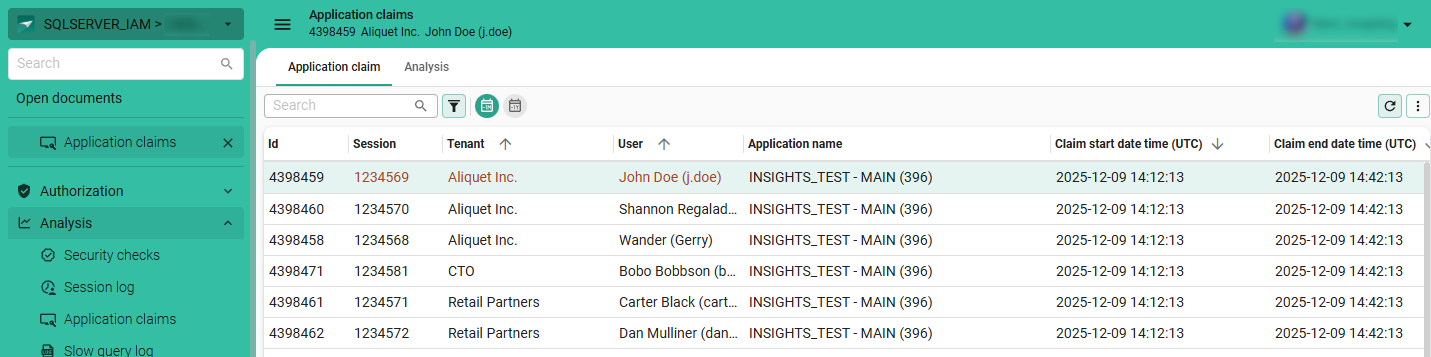 View which users have claimed an application
To provide further insight, we added the fields Active users and Active system flow in the form of an application in the menu Authorization > Applications. Furthermore, you can also view a list of active users in the detail tab Active users in the Applications screen. Knowing how many users are active can help you make informed decisions about application maintenance, such as postponing taking an application offline.
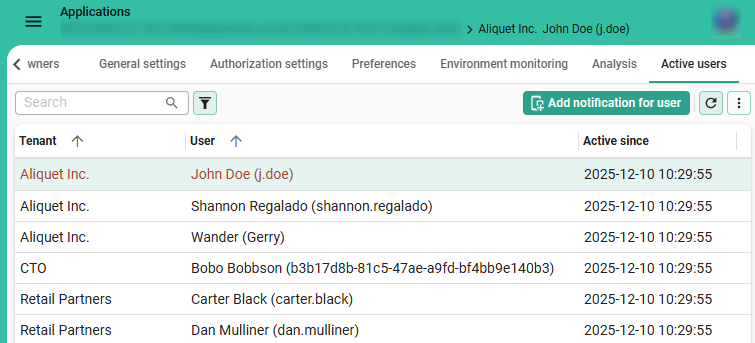 View active users for an application in the 'Active users' tab
Analysis - Improvements for 'Slow query log'
newWe introduced the Slow query log in Thinkwise platform version 2025.3. In this release we have further improved the Slow query log by adding more information about the logged queries.
The following new columns are included in the grid:
- Type - shows the type of query, such as
QUERY,INSERT, orTASK. - User - shows the user who performed the query.
Furthermore, you can now dismiss statements by their type within an object.
For example, you can dismiss all INSERT statements for a specific table, but keep QUERY statement for that table visible in the log.
This is useful when certain types of statements are known to perform heavy calculations.
To dismiss a specific type of statement for a database object, select the statement with the desired type in the grid.
Then execute the task Dismiss query  as usual.
In the popup, you can select Dismiss all types if you still want to dismiss all statement types.
This option is deselected by default.
as usual.
In the popup, you can select Dismiss all types if you still want to dismiss all statement types.
This option is deselected by default.
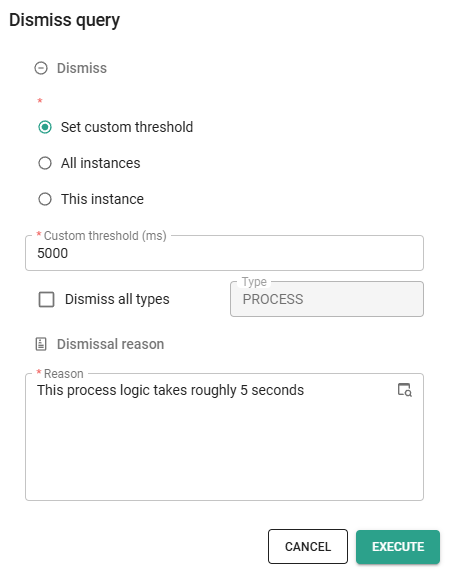 You can now dismiss logged queries by their type within an object
Data model changes
Data model changes for the Software Factory and IAM meta-models are listed here. This overview can be used as a reference to fix dynamic control procedures, dynamic model code, custom validations, or custom enrichments after an upgrade.
Changes Software Factory
Table changes
Changes
| SF - From table | SF - To table |
|---|---|
| - | database_server |
| - | screen_component_type_filter |
| - | sync_cache_tab_variant_col |
| - | web_connection_endpoint_output_parmtr_tag |
| - | web_connection_endpoint_parmtr_tag |
| - | web_connection_endpoint_tag |
| - | web_connection_parmtr_tag |
| - | web_connection_tag |
Column changes
Changes
| SF - Table | SF - From column | SF - To column | Mandatory | Default value |
|---|---|---|---|---|
| cube_view_grp | - | custom_display_type | 0 | - |
| cube_view_grp | - | icon_id | 0 | - |
| data_migration_col | - | history_default_value | 0 | - |
| data_migration_col | - | history_default_value_query | 0 | - |
| data_migration_col | - | history_from_col_id | 0 | - |
| data_migration_col | - | history_type_of_default_value | 1 | 0 |
| model_vrs_data_migration_col | - | history_default_value | 0 | - |
| model_vrs_data_migration_col | - | history_default_value_query | 0 | - |
| model_vrs_data_migration_col | - | history_from_col_id | 0 | - |
| model_vrs_data_migration_col | - | history_type_of_default_value | 1 | 0 |
| msg | - | msg_error_code | 0 | - |
| msg | msg_error_code | - | - | - |
| process_flow | - | use_api_trigger | 1 | 1 |
| process_flow | - | use_starting_points | 1 | 1 |
| process_flow | is_sub_flow | - | - | - |
| prog_lang | - | max_length_variable_name | 0 | 128 |
| report_type | - | available_in_thinkwise_cloud | 1 | 0 |
| report_type_action | - | available_in_thinkwise_cloud | 1 | 0 |
| runtime_configuration | - | database_server_id | 0 | - |
| runtime_configuration | server_name | - | - | - |
| scheduler_view | - | hide_friday | 1 | 0 |
| scheduler_view | - | hide_monday | 1 | 0 |
| scheduler_view | - | hide_saturday | 1 | 0 |
| scheduler_view | - | hide_sunday | 1 | 0 |
| scheduler_view | - | hide_thursday | 1 | 0 |
| scheduler_view | - | hide_tuesday | 1 | 0 |
| scheduler_view | - | hide_wednesday | 1 | 0 |
| scheduler_view | - | max_displayed_time | 0 | - |
| scheduler_view | - | min_displayed_time | 0 | - |
| scheduler_view | - | time_cell_min_width | 0 | - |
| scheduler_view_conditional_layout_tag | conditional_layout_id | cell_color_id | 1 | - |
| screen_component | - | tab_orientation | 0 | - |
| screen_component_type | - | is_bar | 1 | 0 |
| screen_component_type | - | is_component_tab_page | 1 | 0 |
| screen_component_type | - | is_detail_tab_page | 1 | 0 |
| screen_component_type | - | is_splitter | 1 | 0 |
| screen_component_type | - | is_tab | 1 | 0 |
| screen_component_type | - | order_no | 1 | - |
| sf_configuration | - | default_database_server_id | 0 | - |
| sf_configuration | - | thinkwise_cloud_environment | 1 | 0 |
| sf_configuration | default_server_name | - | - | - |
| sf_configuration | thinkstore_refresh_token | - | - | - |
| subroutine_type | - | available_in_thinkwise_cloud | 1 | 1 |
| tab_prefilter_grp | - | custom_display_type | 0 | - |
| tab_report_grp | - | custom_display_type | 0 | - |
| tab_report_grp | - | icon_id | 0 | - |
| tab_task_grp | - | custom_display_type | 0 | - |
| tab_task_grp | - | icon_id | 0 | - |
| tab_variant_scheduler_view | - | hide_friday | 1 | 0 |
| tab_variant_scheduler_view | - | hide_monday | 1 | 0 |
| tab_variant_scheduler_view | - | hide_saturday | 1 | 0 |
| tab_variant_scheduler_view | - | hide_sunday | 1 | 0 |
| tab_variant_scheduler_view | - | hide_thursday | 1 | 0 |
| tab_variant_scheduler_view | - | hide_tuesday | 1 | 0 |
| tab_variant_scheduler_view | - | hide_wednesday | 1 | 0 |
| tab_variant_scheduler_view | - | max_displayed_time | 0 | - |
| tab_variant_scheduler_view | - | min_displayed_time | 0 | - |
| tab_variant_scheduler_view | - | time_cell_min_width | 0 | - |
| task_type | - | available_in_thinkwise_cloud | 1 | 0 |
| thinkstore | model | - | - | - |
| usr | - | windows_compatible | 1 | 0 |
| web_connection_endpoint_form_field | - | content_type_form_field | 0 | - |
| web_connection_endpoint_form_field | - | derive_content_type_form_field | 1 | 0 |
| web_connection_endpoint_form_field | - | file_name | 0 | - |
| web_connection_endpoint_form_field | - | web_connection_endpoint_form_field_id | 1 | - |
Changes Intelligent Application Manager
Table changes
Changes
| IAM - From table | IAM - To table |
|---|---|
| - | appl_db |
| - | usr_pref_cube_view_filter_node |
| - | usr_pref_variant_cube_view_filter_node |
| usr_pref_cube_view_field_filter | - |
| usr_pref_tab_prefilter_col | - |
| usr_pref_tab_variant_prefilter_col | - |
| usr_pref_variant_cube_view_field_filter | - |
Column changes
Changes
| IAM - Table | IAM - From column | IAM - To column | Mandatory | Default value |
|---|---|---|---|---|
| appl_claim | - | claim_duration | 0 | - |
| cube_view | - | cube_view_grp_custom_display_type | 0 | - |
| cube_view | - | cube_view_grp_icon | 0 | - |
| cube_view | - | cube_view_grp_icon_data | 0 | - |
| global_settings | - | dtap_environment | 0 | 0 |
| global_settings | - | thinkwise_cloud_environment | 1 | 0 |
| gui_appl | - | database_id | 1 | 0 |
| gui_appl | db_name | - | - | - |
| msg | - | msg_error_code | 0 | - |
| msg | msg_error_code | - | - | - |
| openid_provider_usr_template | - | allow_create_pat_claim_id | 0 | - |
| openid_provider_usr_template | - | allow_create_pat_static_value | 0 | 0 |
| scheduler_view | - | hide_friday | 1 | 0 |
| scheduler_view | - | hide_monday | 1 | 0 |
| scheduler_view | - | hide_saturday | 1 | 0 |
| scheduler_view | - | hide_sunday | 1 | 0 |
| scheduler_view | - | hide_thursday | 1 | 0 |
| scheduler_view | - | hide_tuesday | 1 | 0 |
| scheduler_view | - | hide_wednesday | 1 | 0 |
| scheduler_view | - | max_displayed_time | 0 | - |
| scheduler_view | - | min_displayed_time | 0 | - |
| scheduler_view | - | time_cell_min_width | 0 | - |
| security_check | branch_id | - | - | - |
| security_check | gui_appl_id | - | - | - |
| security_check | model_id | - | - | - |
| security_check | - | gui_appl_alias | 1 | - |
| security_check_email_notification | branch_id | - | - | - |
| security_check_email_notification | gui_appl_id | - | - | - |
| security_check_email_notification | model_id | - | - | - |
| security_check_value | branch_id | - | - | - |
| security_check_value | gui_appl_id | - | - | - |
| security_check_value | model_id | - | - | - |
| security_scan | - | gui_appl_alias | 1 | - |
| sf_process_flow | - | use_api_trigger | 1 | 1 |
| sf_process_flow | - | use_starting_points | 1 | 1 |
| sf_process_flow | is_sub_flow | - | - | - |
| slow_query_dismissed | - | object_type | 0 | - |
| slow_query_log | - | object_type | 0 | - |
| slow_query_log | - | usr_id | 0 | - |
| tab_prefilter | - | grp_custom_display_type | 0 | - |
| tab_report | - | tab_report_grp_custom_display_type | 0 | - |
| tab_report | - | tab_report_grp_icon | 0 | - |
| tab_report | - | tab_report_grp_icon_data | 0 | - |
| tab_task | - | tab_task_grp_custom_display_type | 0 | - |
| tab_task | - | tab_task_grp_icon | 0 | - |
| tab_task | - | tab_task_grp_icon_data | 0 | - |
| tab_variant_scheduler_view | - | hide_friday | 1 | 0 |
| tab_variant_scheduler_view | - | hide_monday | 1 | 0 |
| tab_variant_scheduler_view | - | hide_saturday | 1 | 0 |
| tab_variant_scheduler_view | - | hide_sunday | 1 | 0 |
| tab_variant_scheduler_view | - | hide_thursday | 1 | 0 |
| tab_variant_scheduler_view | - | hide_tuesday | 1 | 0 |
| tab_variant_scheduler_view | - | hide_wednesday | 1 | 0 |
| tab_variant_scheduler_view | - | max_displayed_time | 0 | - |
| tab_variant_scheduler_view | - | min_displayed_time | 0 | - |
| tab_variant_scheduler_view | - | time_cell_min_width | 0 | - |
| tenant | - | default_usr_allow_create_pat | 1 | 0 |
| usr_pref_tab_prefilter_node | - | date_time_interval | 0 | - |
| usr_pref_tab_variant_prefilter_node | - | date_time_interval | 0 | - |
| web_connection_endpoint_form_field | - | content_type_form_field | 0 | - |
| web_connection_endpoint_form_field | - | derive_content_type_form_field | 1 | 0 |
| web_connection_endpoint_form_field | - | file_name | 0 | - |
| web_connection_endpoint_form_field | - | web_connection_endpoint_form_field_id | 1 | - |